If you want your agent to send generated content directly to Slack, you’ll need to configure the Slack skill set first. The setup only takes a few minutes.
Step 1: Create a Slack App
-
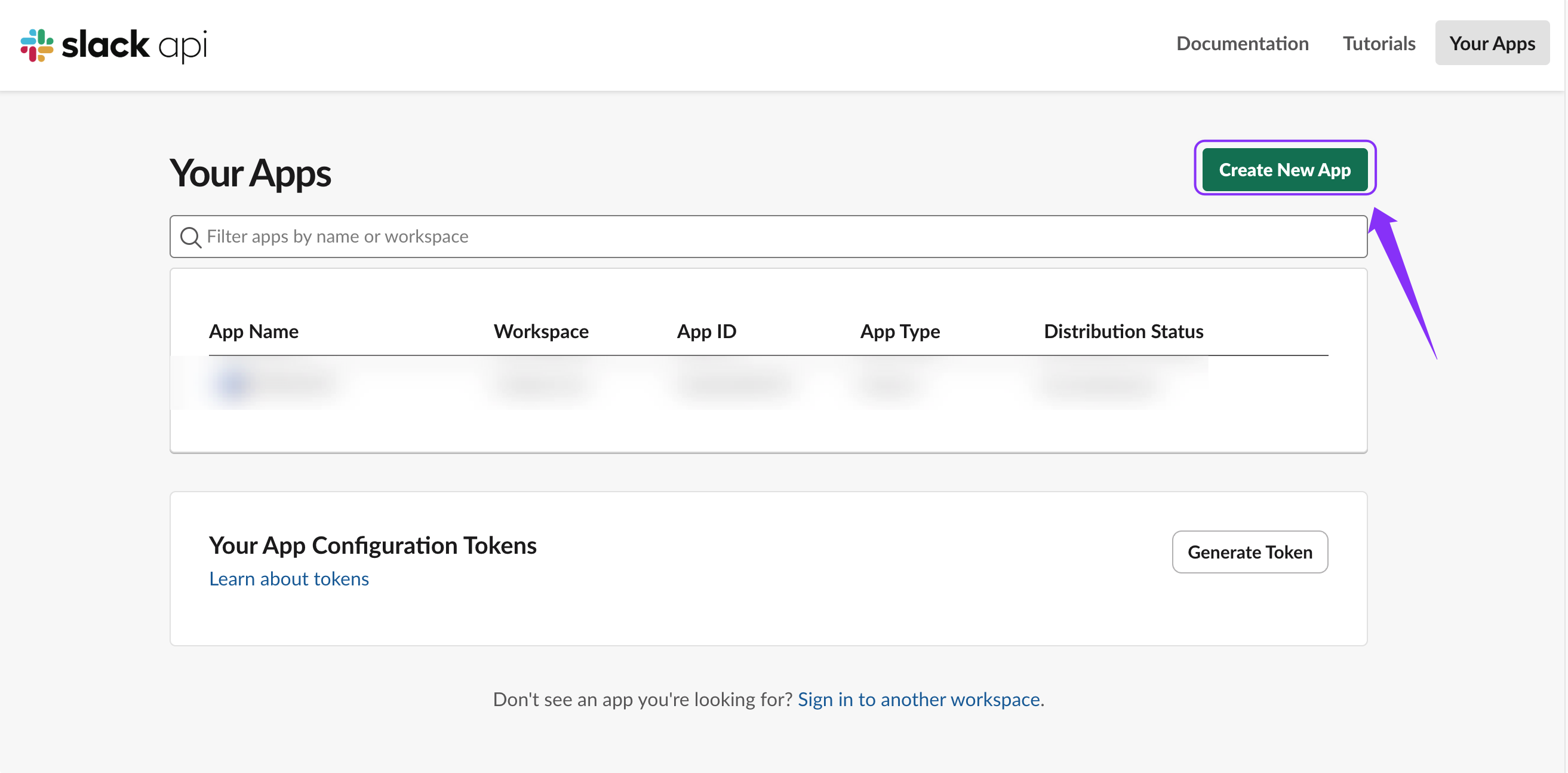
Click Create New App
-
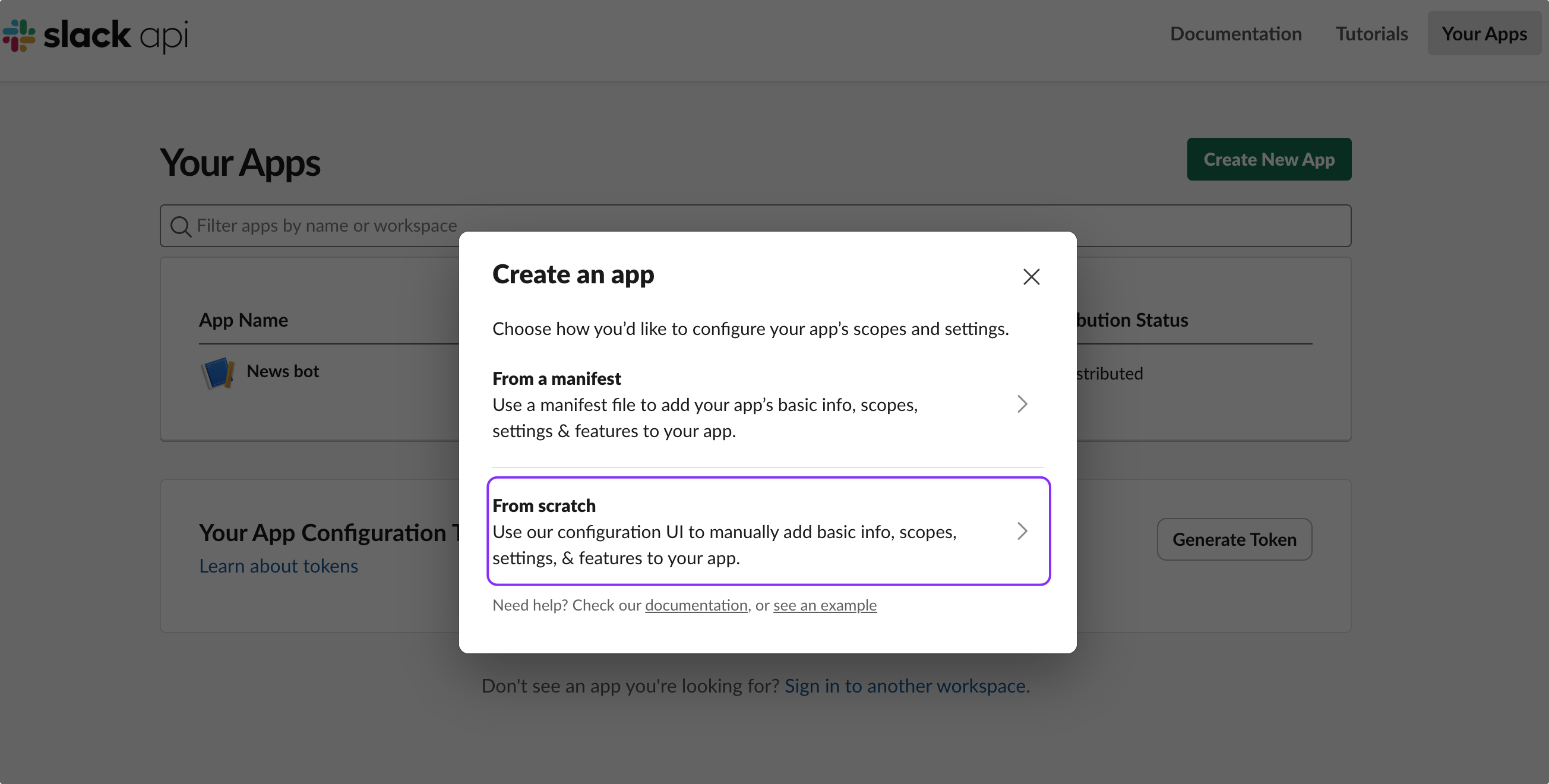
Select From scratch
-
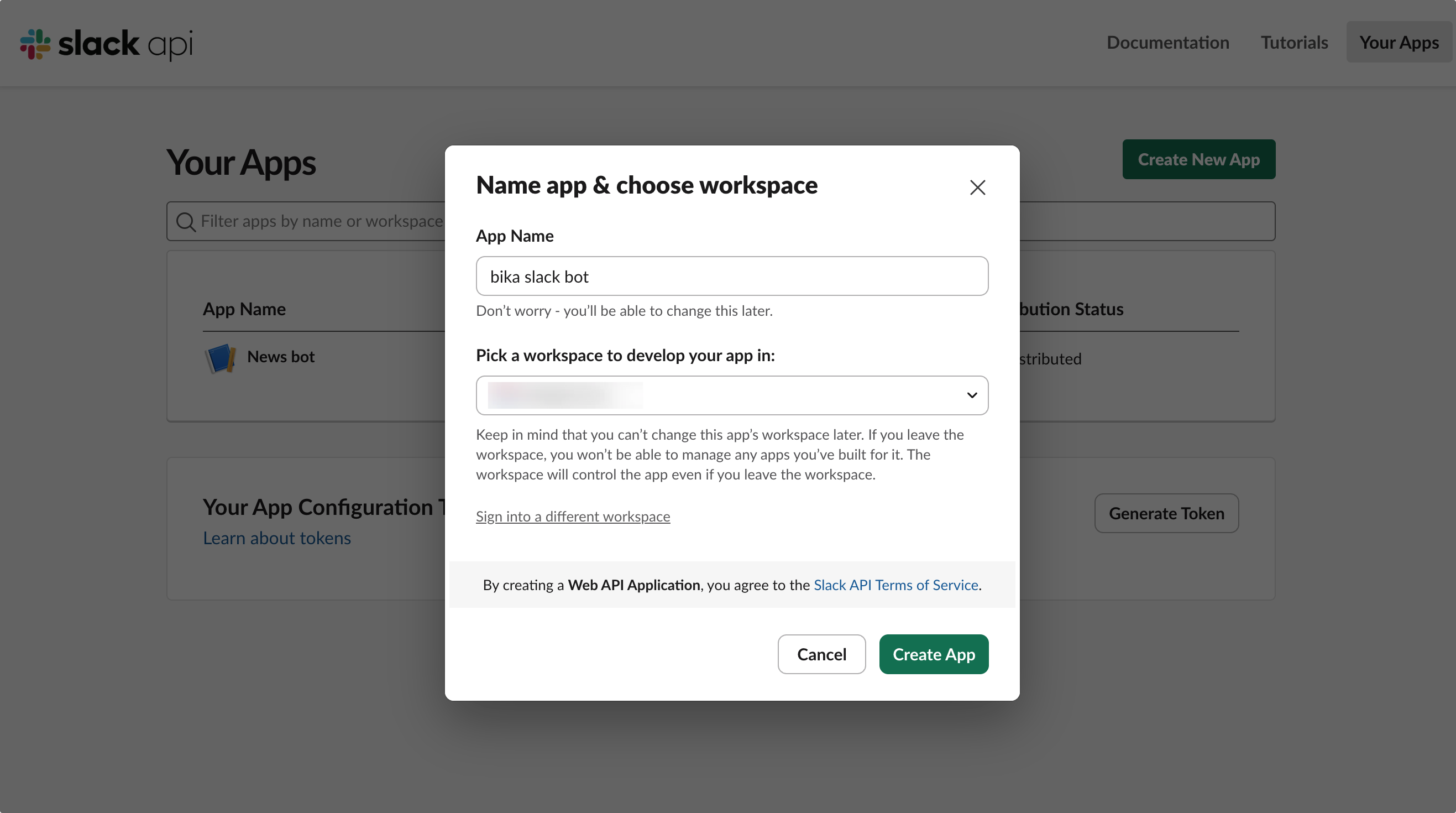
Name your app and choose the Slack workspace you want to connect
Step 2: Configure OAuth & Permissions
After creating the app:
-
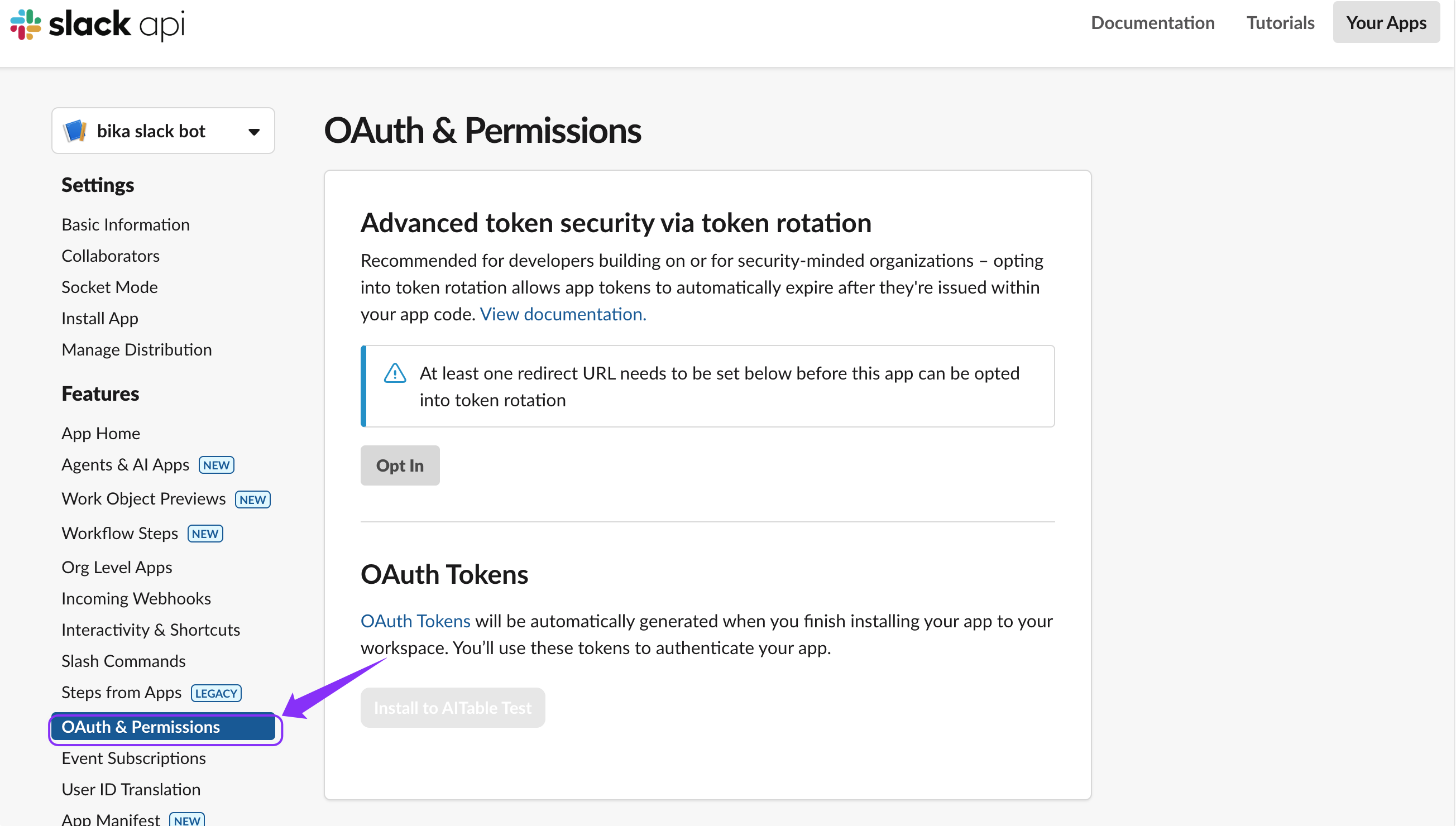
Go to OAuth & Permissions
-
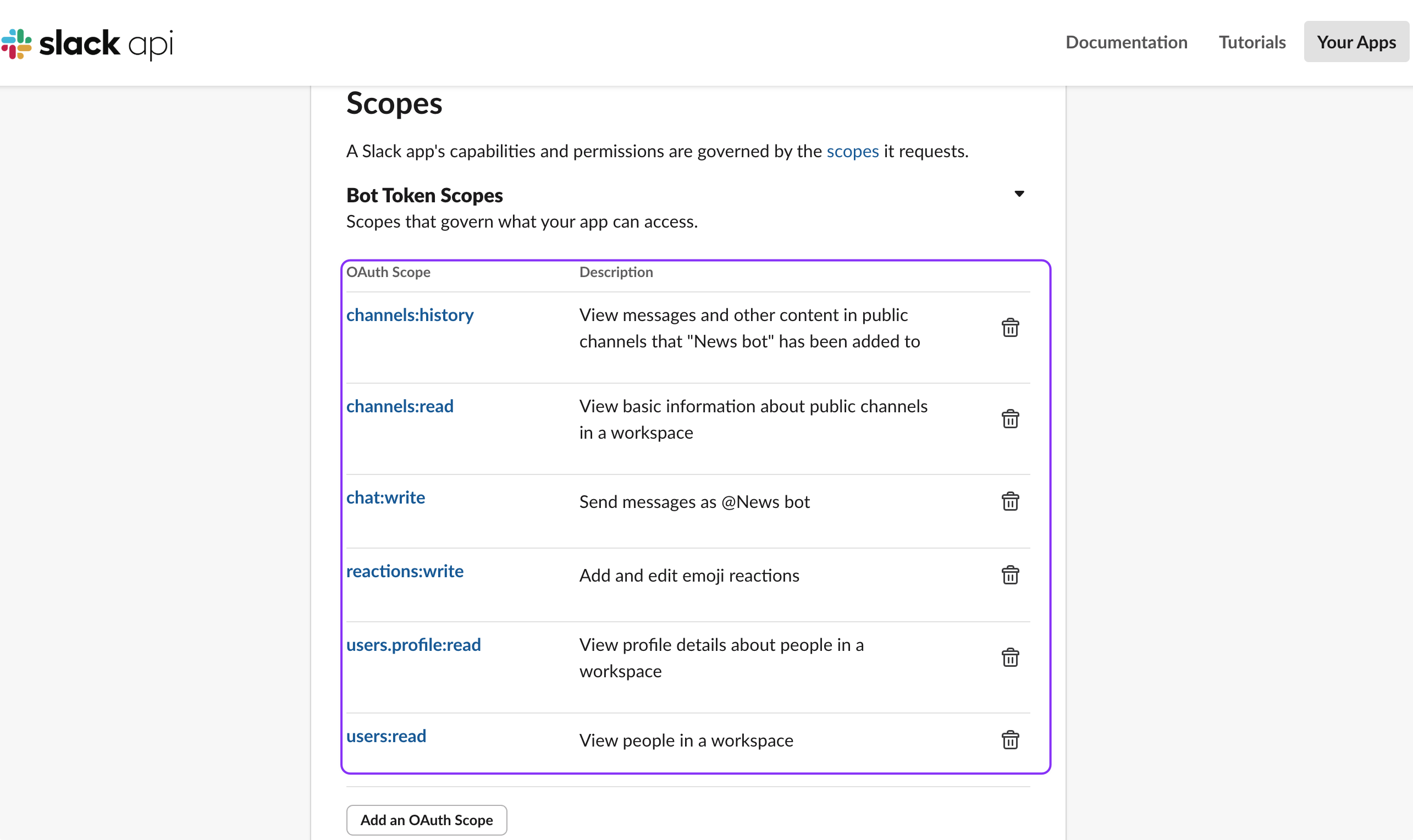
Under Bot Token Scopes, add the following permissions:
•channels:history – View messages and content in public channels
• channels:read – View basic channel information
• chat:write – Send messages as the app
• reactions:write – Add emoji reactions to messages
• users:read – View users and their basic information
• users.profile:read – View detailed user profiles
Step 3: Install the App to Your Slack Workspace
-
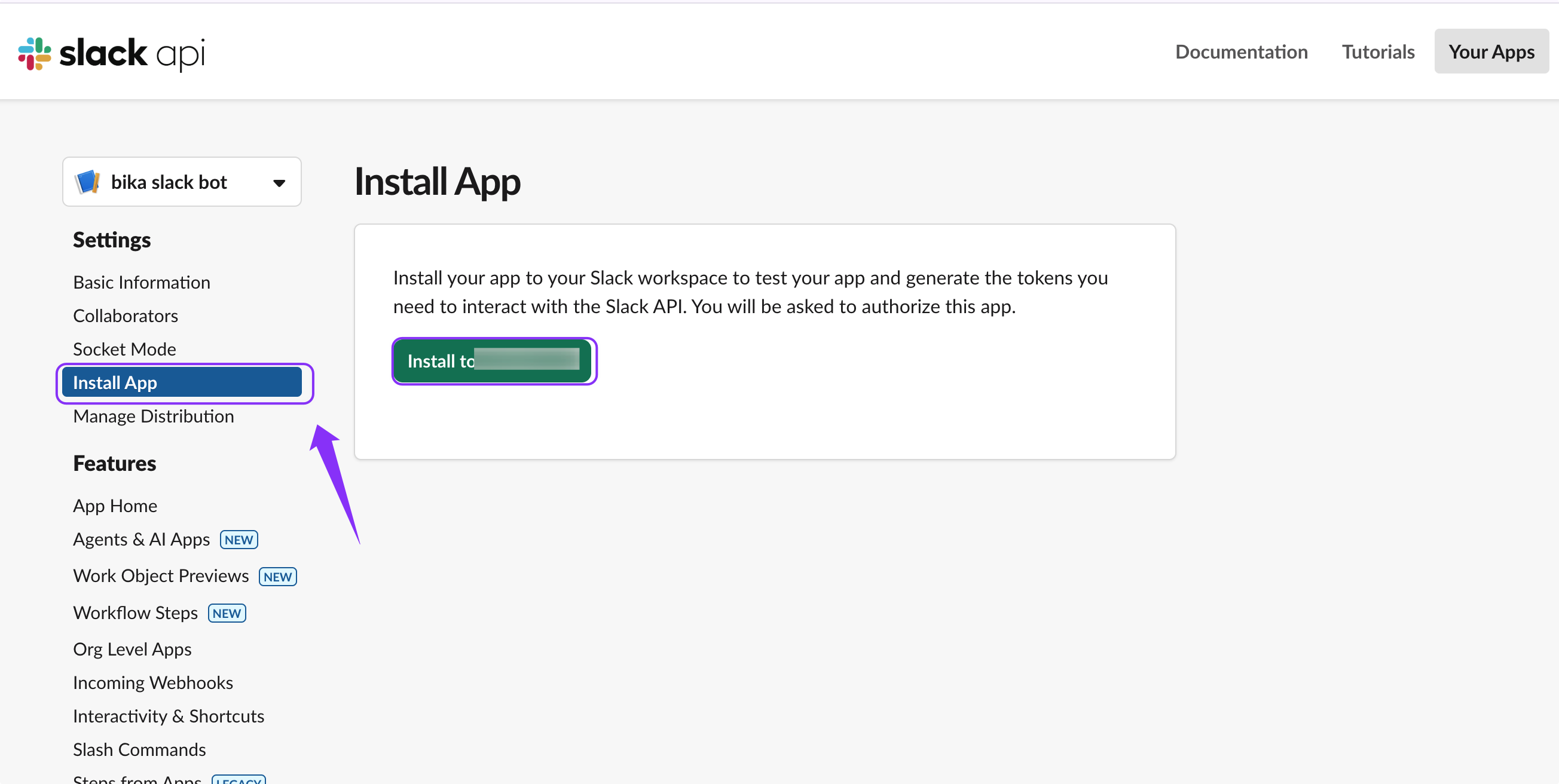
In OAuth & Permissions, click Install to Workspace
-
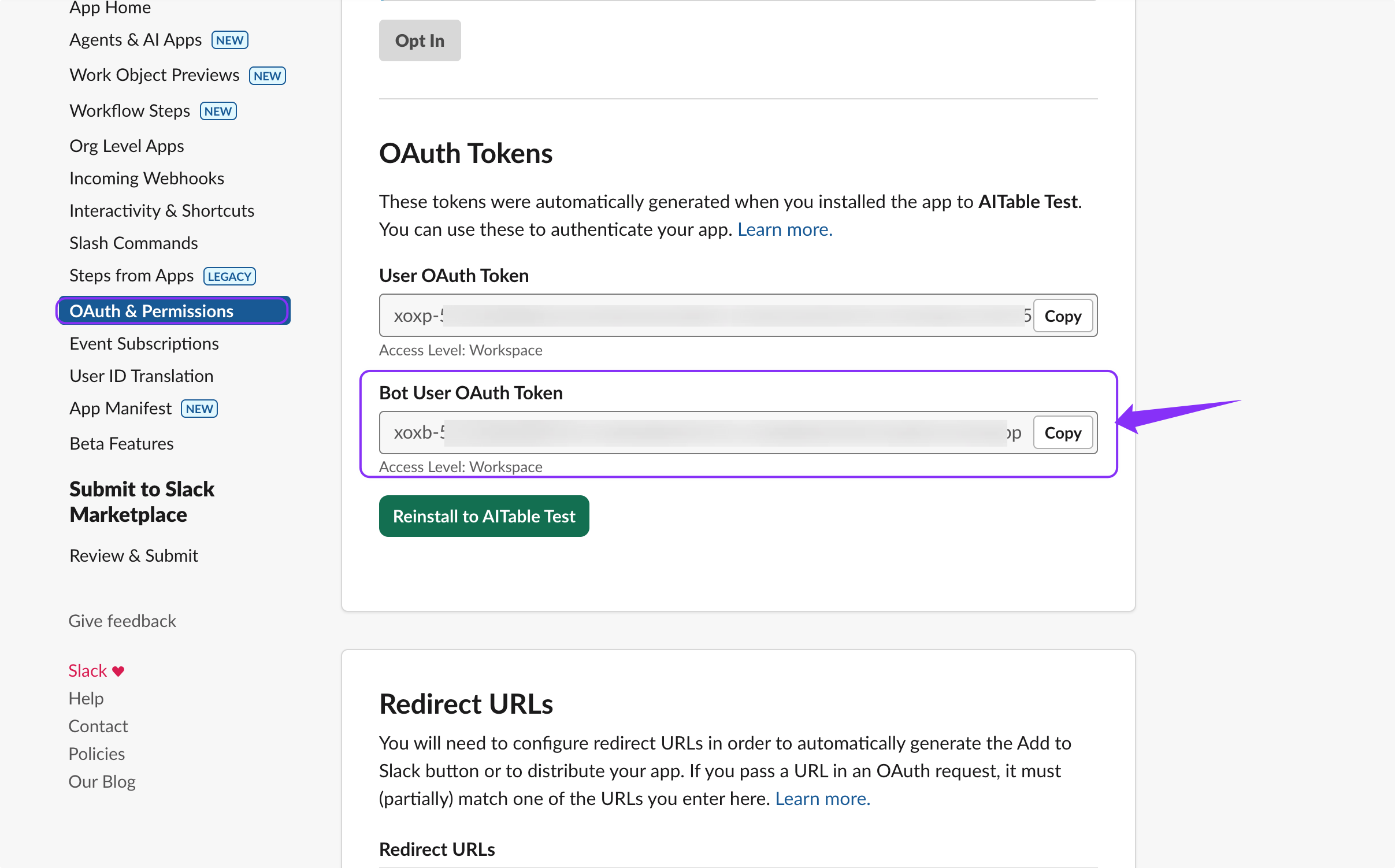
Authorize the app: After installation, Slack will generate a Bot User OAuth Token. It starts with
xoxb-.
 Copy this token. You’ll need it in the next steps
Step 4: Add the App to the Slack Channel You Want to Notify
- Open the Slack channel you want to receive notifications
- Click the channel name → Integrations (or Apps)
- Add your newly created app to the channel
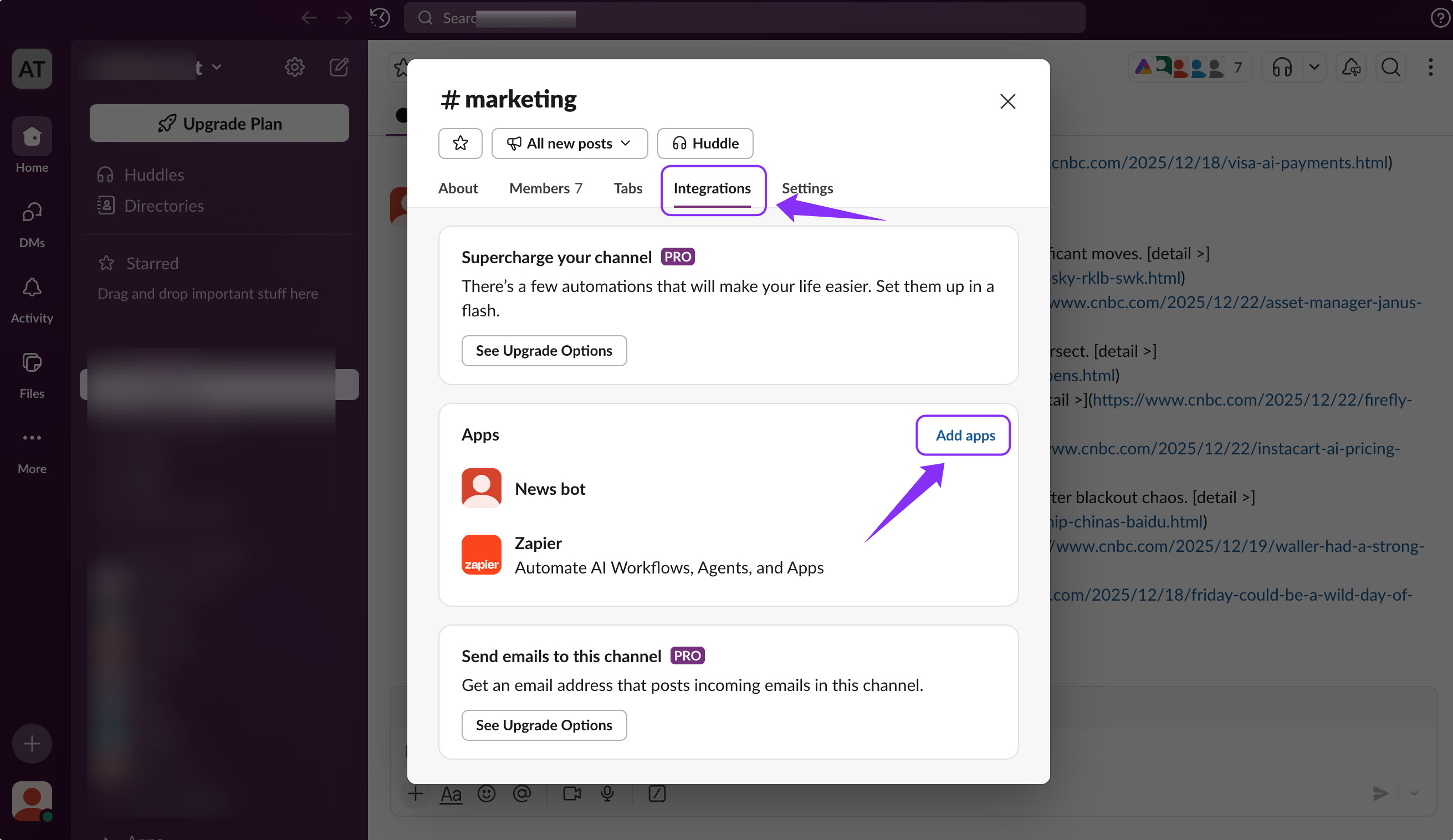
Once added, the agent will be able to send messages to that channel.
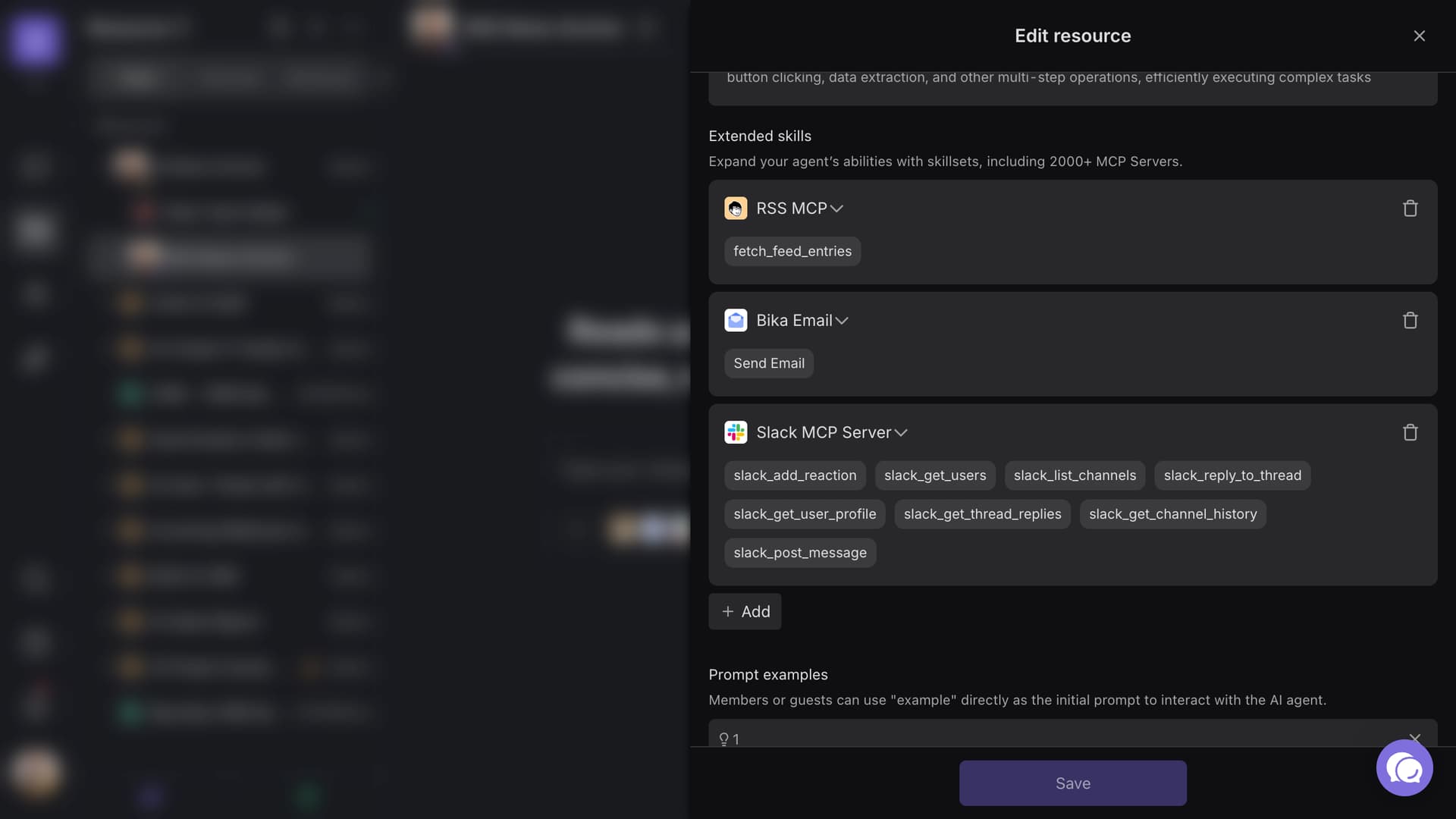
Step 5: Enable the Slack MCP Server in Your Agent
- Open your agent settings
- Go to Extended Skills
- Find and enable the Slack MCP Server
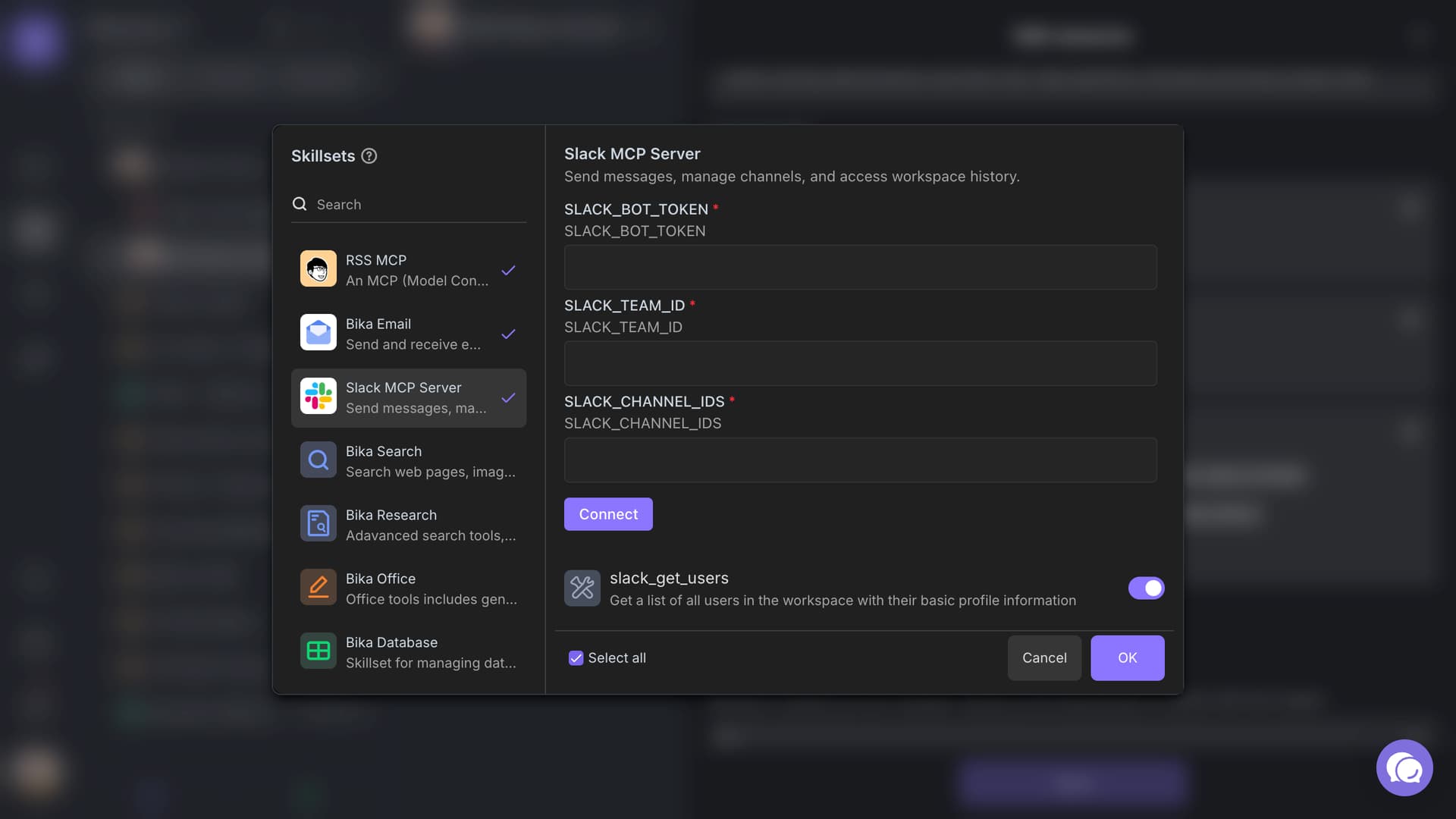
Step 6: Configure Environment Variables
Paste the Slack Bot User OAuth Token (starts with xoxb-) into: SLACK_BOT_TOKEN
Get Your Team ID and Channel IDs
• Team ID (starts with T)
• Channel ID (starts with C)
Follow this official Slack guide to find them:
Once you have them, add the IDs to your configuration as needed (for example, _CHANNEL_IDS).
Step 7: Enable Slack Actions and Define Agent Instructions
Back in the agent’s Extended Skills settings, enable only the Slack actions you plan to use (such as posting messages, replying to threads, or adding reactions).
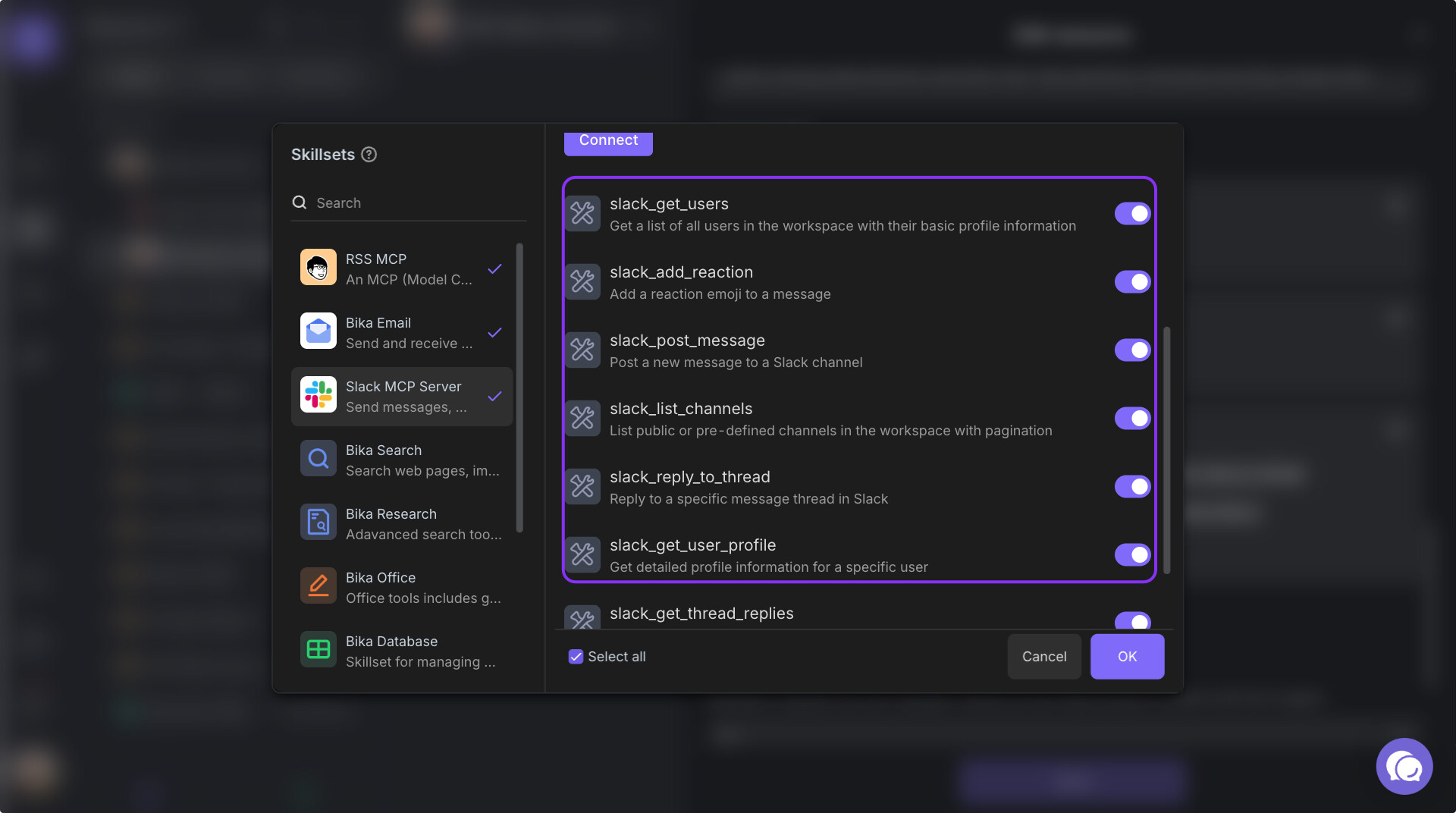
This keeps your setup simple and avoids unnecessary permissions.
Next, update the agent’s instructions so it knows when and how to send messages to Slack.
Here’s an example:
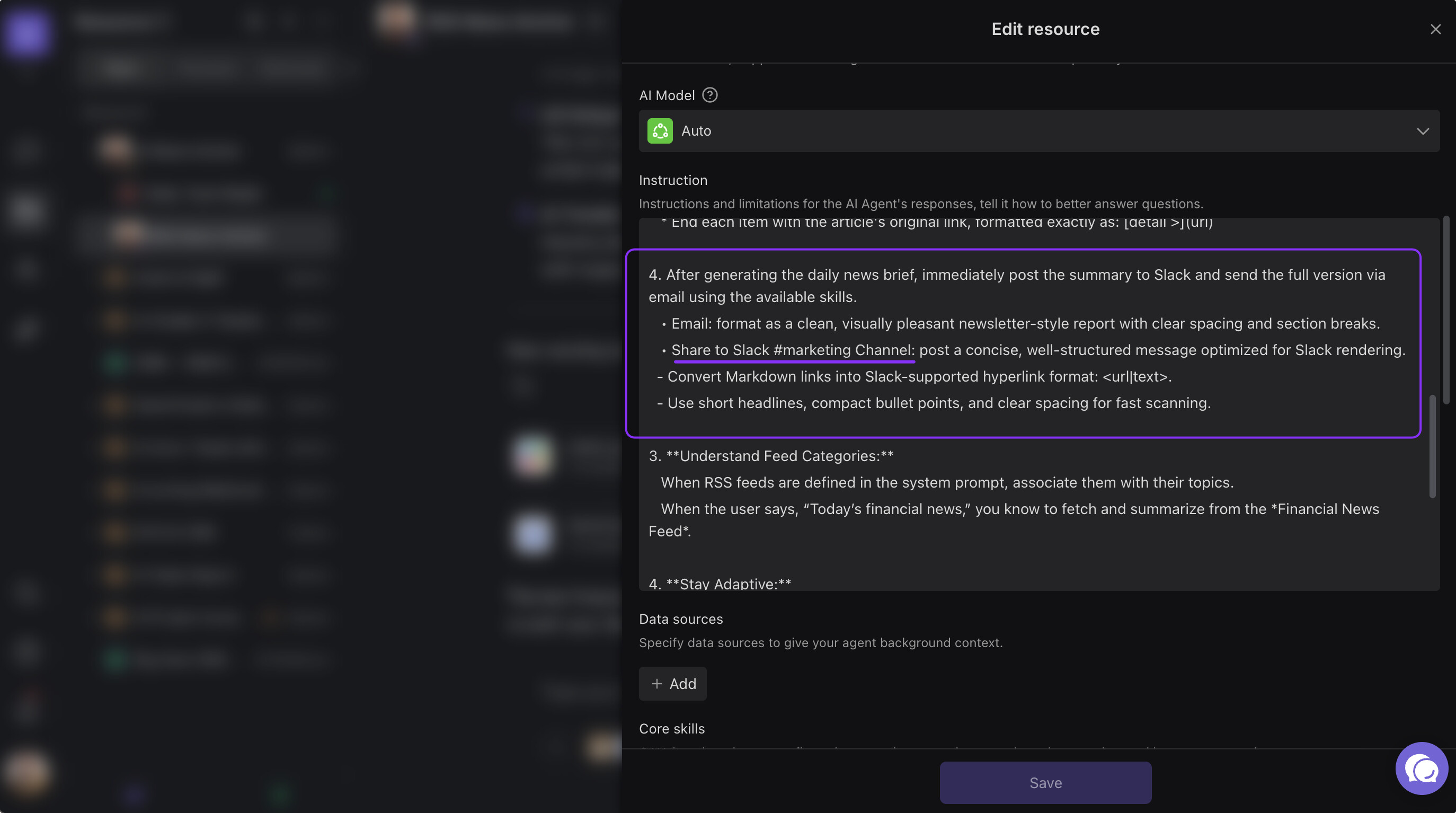
Important: The Slack channel specified here (for example, #marketing) must match the channel where the Slack app/bot has been added.
Done 
Once configured, your agent can automatically send messages, summaries, or workflow results to Slack as part of your automation.
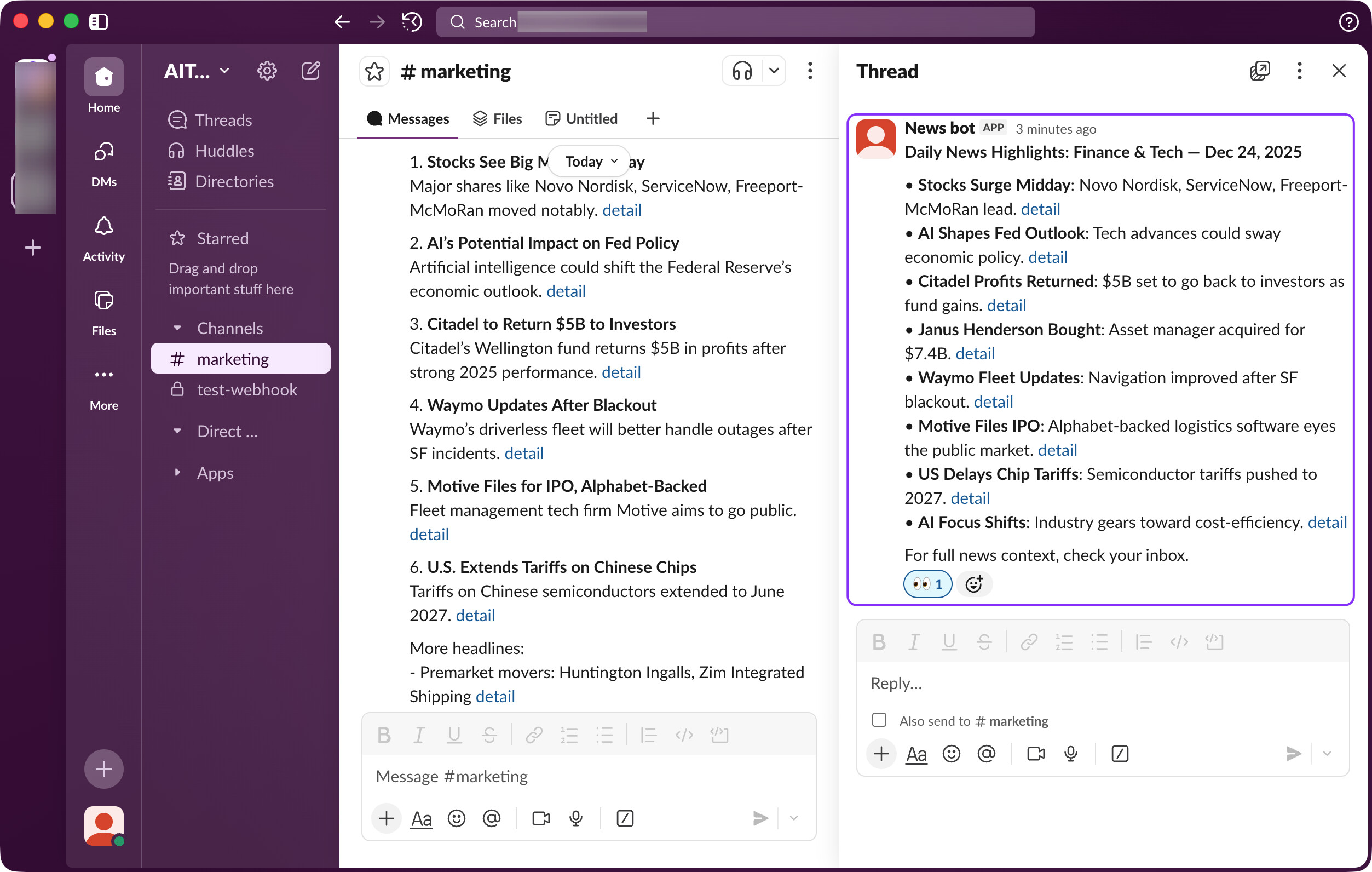
This is especially useful for daily reports, RSS updates, alerts, and team notifications.