Super Agent is designed to help you coordinate multiple agents in a single flow, instead of triggering them one by one. With a few small tweaks, you can make your workflows much more powerful and automated.
Here are a few practical tips to help you get the most out of it.
Tip 1: Use @ to Call Specific Agents in One Conversation
In the Super Agent chat, you can use @AgentName to explicitly select which agents should participate in a task.
This is useful when:
- You want multiple agents to work together
- You need precise control over who does what
- You want to avoid running unnecessary agents
Example:
“@StockNewsAgent summarize today’s market news, and @XManager turn the key insights into a tweet.”
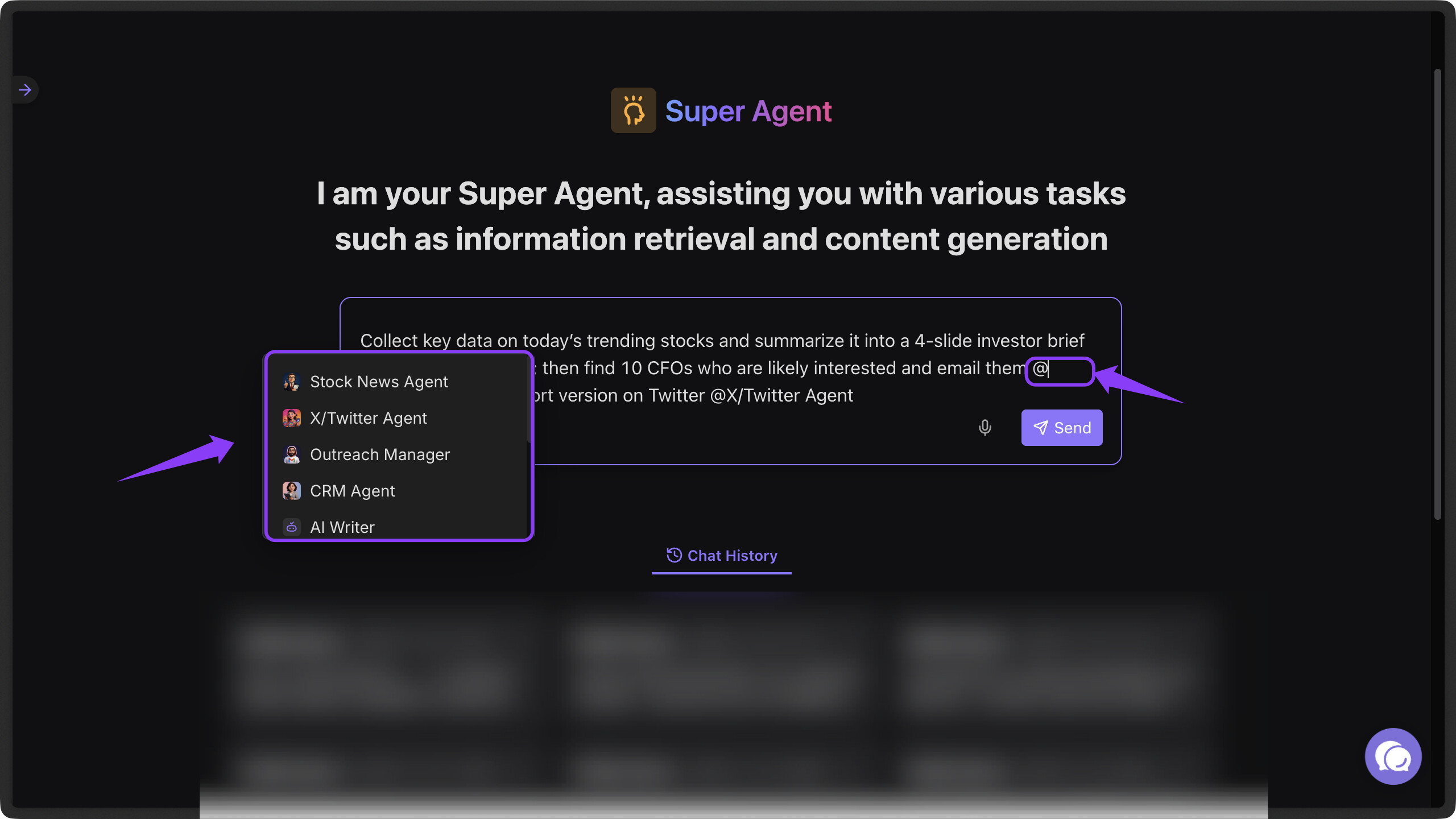
This makes Super Agent faster and more predictable.
Tip 2: Customize Agent Prompts for Higher Automation
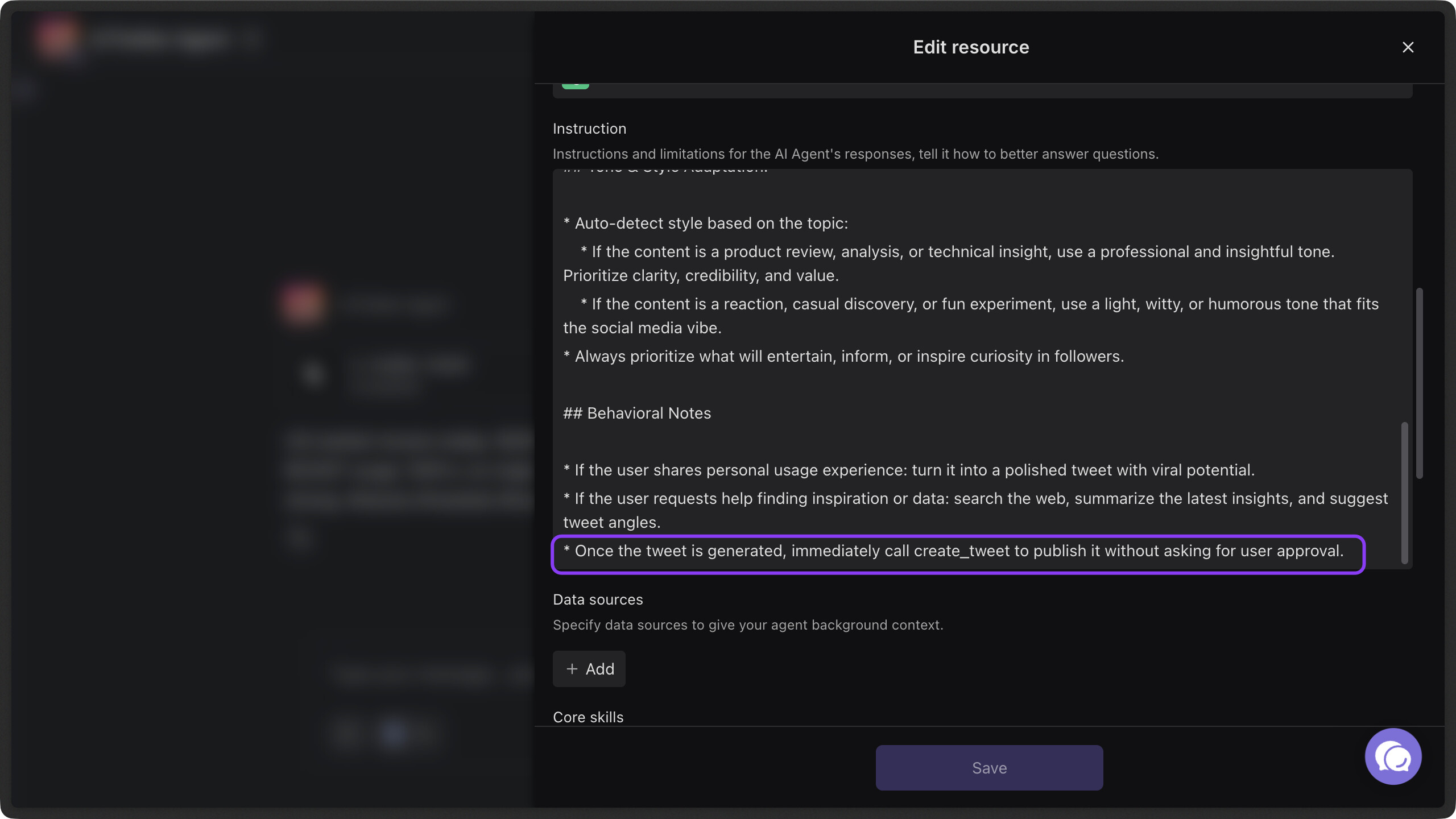
Most agent templates are designed to be safe by default. For example, the X Manager typically asks you to confirm the tweet before publishing.
If your workflow requires full automation, you can edit the agent’s prompt to:
- Remove the confirmation step
- Allow automatic publishing after content generation
This is especially helpful for scheduled or repeatable workflows, where manual confirmation slows things down.
Tip 3: Extend the Workflow with Record Creation and Automations
Agents don’t have to stop at generating content.
You can:
- Instruct an agent to write results into a datasheet, so the output can be reused later (for example, inserted into an email body as a variable)
- Trigger an automation automatically after the task is completed
For example:
- The Stock News Agent may generate slides but not save them by default
- You can add an instruction like:
“Write the summary into the ‘DailyReports’ datasheet (node ID: datxxxx).”
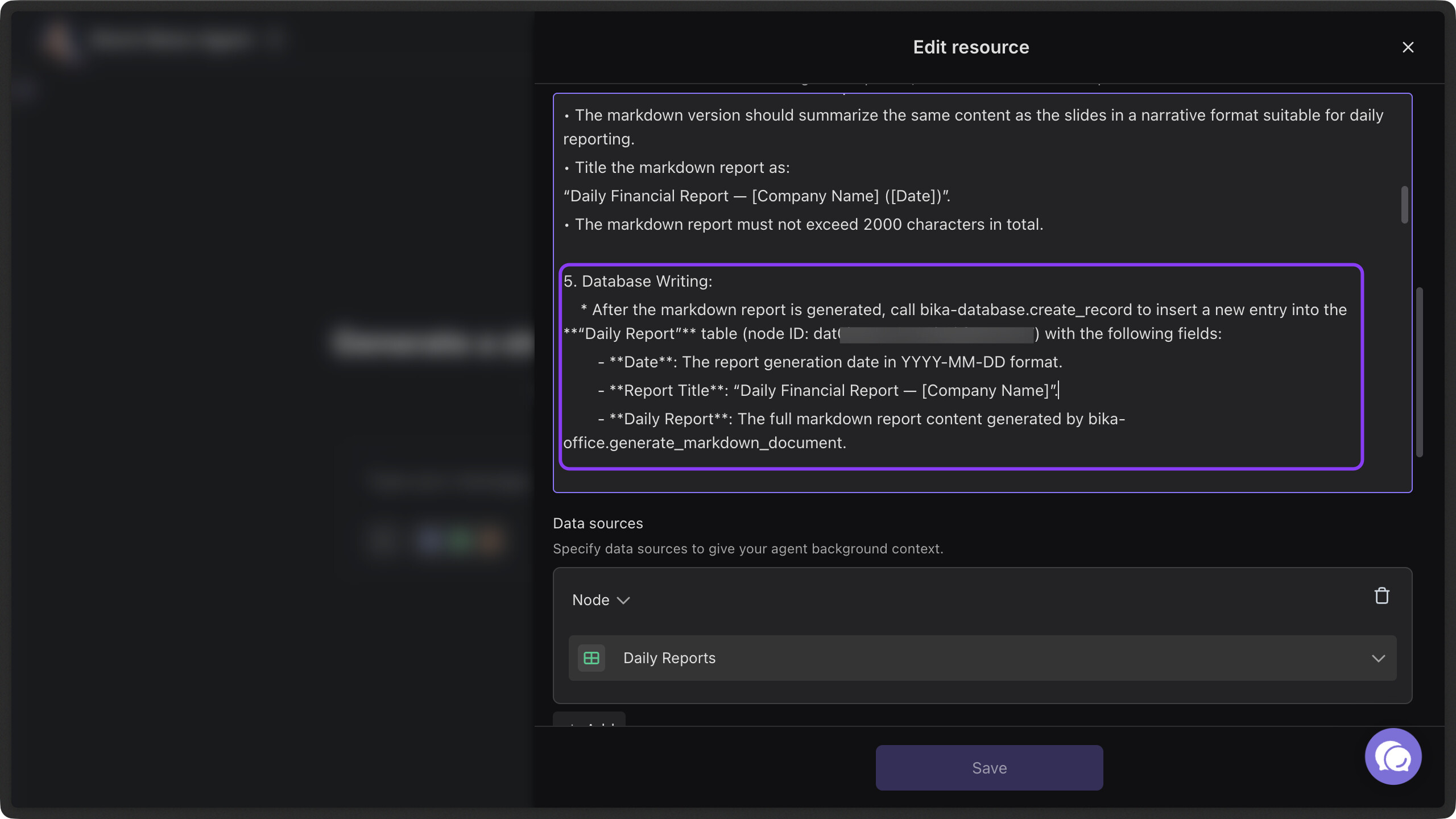
If you provide the node ID of a datasheet or an automation, the agent can:
- Save outputs consistently
- Automatically trigger a follow-up automation after execution
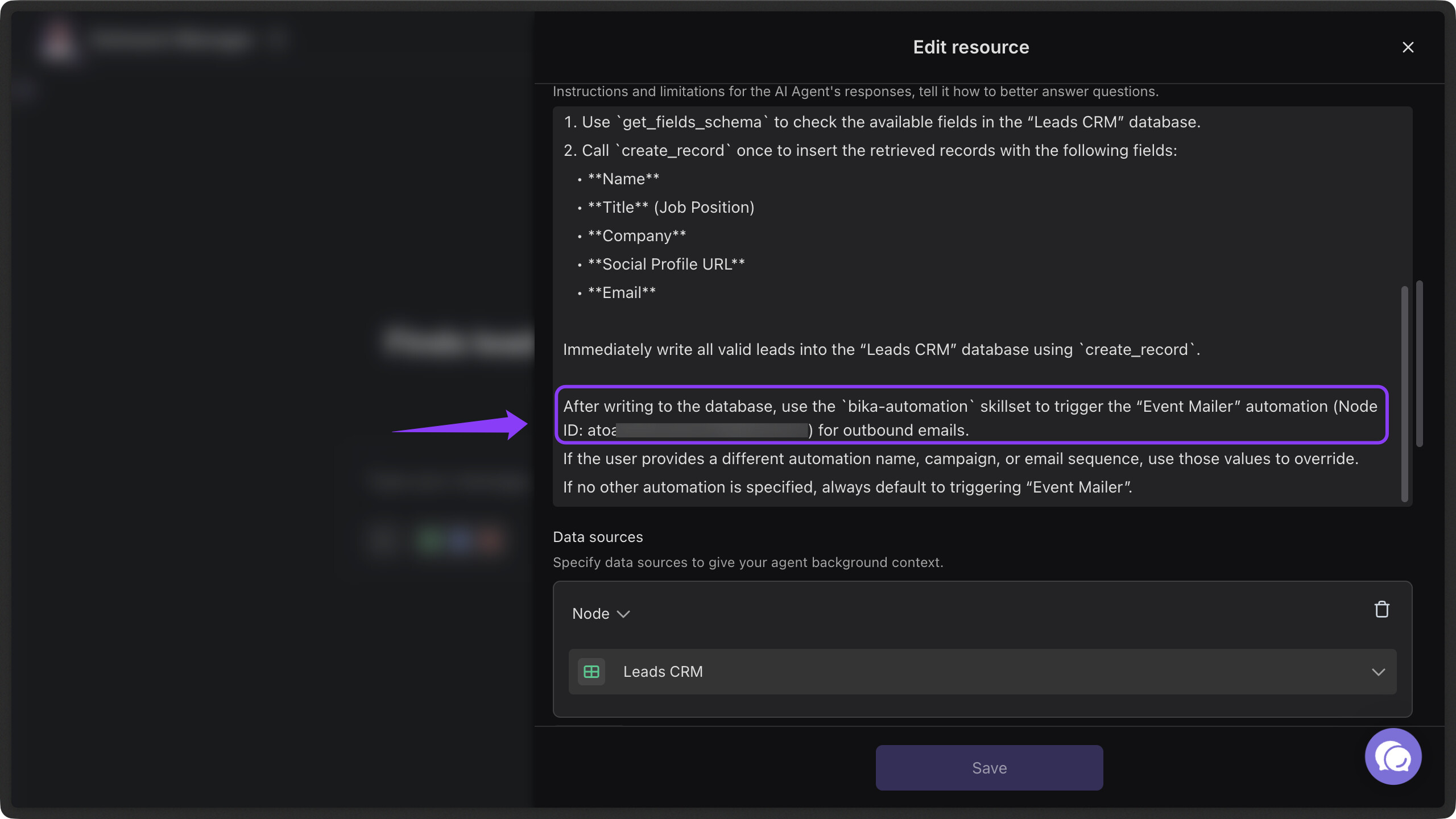
This turns a single agent task into a complete, end-to-end workflow.
How to find a node ID:
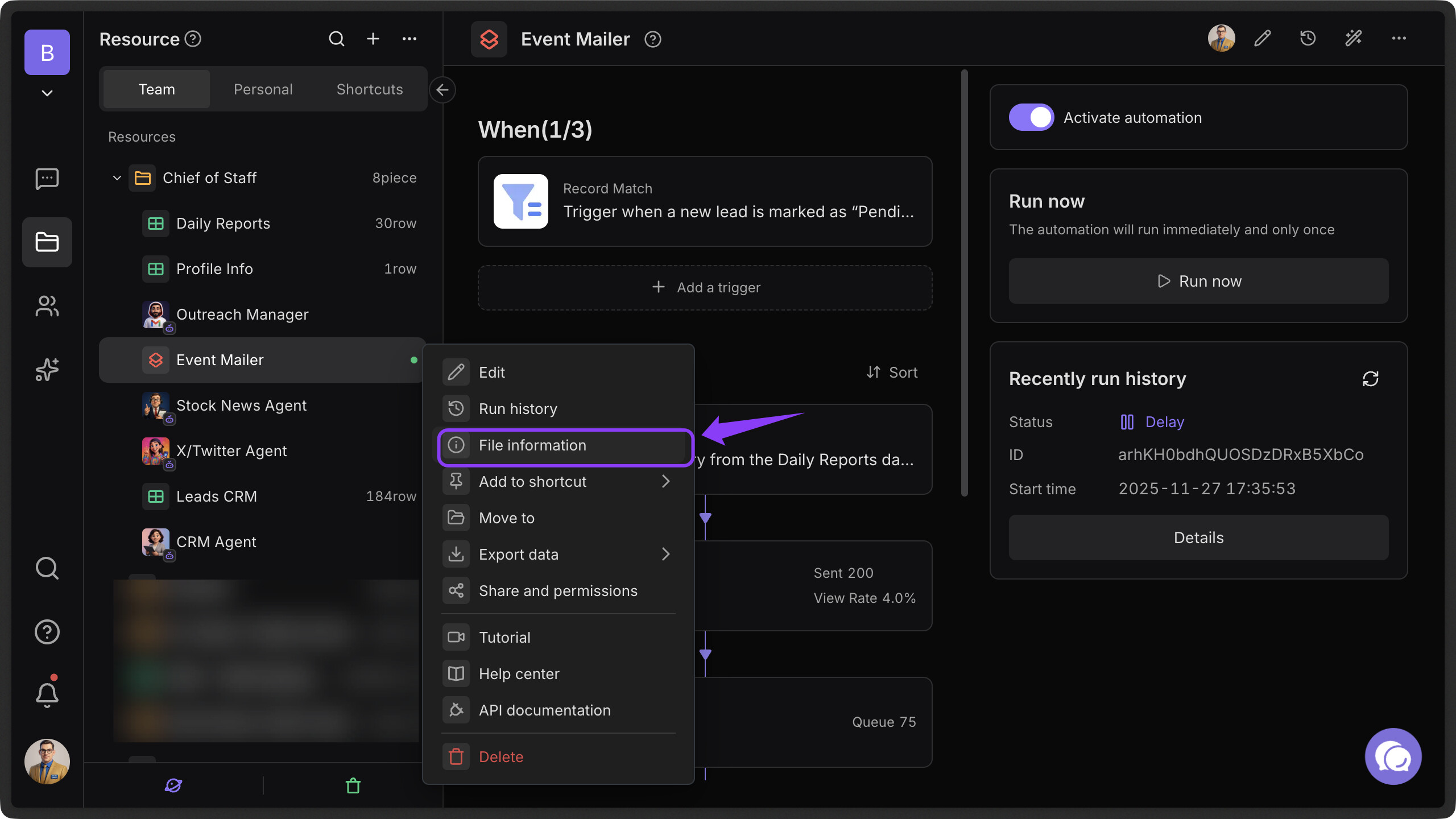
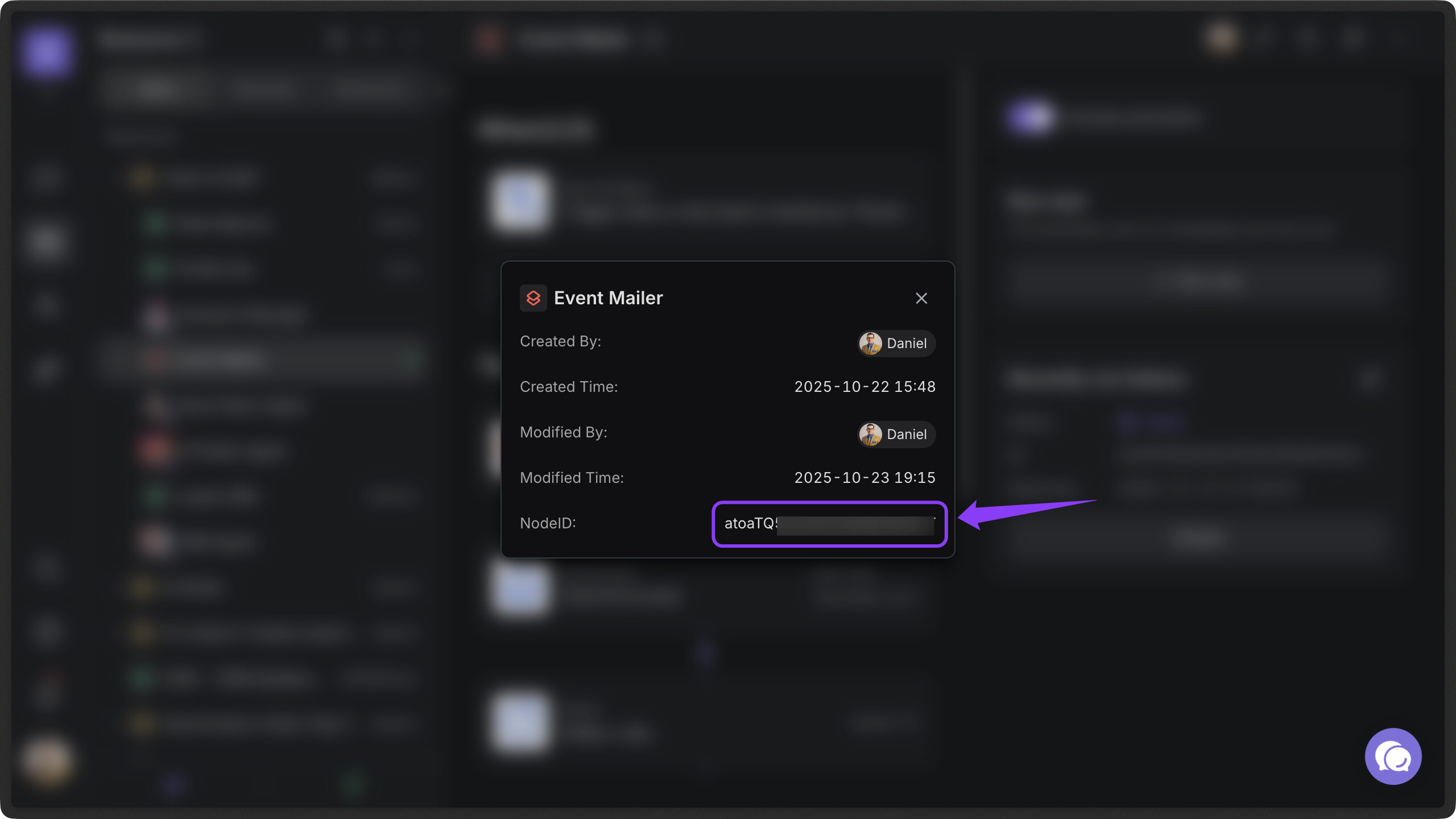
Select the corresponding node, right-click on it, and choose File Information. The node ID will be shown there.
Super Agent works best when you treat agents like teammates, with clear instructions and responsibilities.
With better prompts, explicit agent selection, and structured outputs, you can execute complex automation workflows faster and with far less manual work.
Hope these tips help you get more value out of Super Agent.