The MCP (Model Context Protocol) is an open standard and a kind of “USB-C port” for AI that allows large language models (LLMs) to reliably connect to external data sources and tools.
In Bika.ai, AI Agents can not only use a wide range of built-in Skillsets, but also connect to third-party remote MCP Servers — greatly extending the Agent’s capabilities.
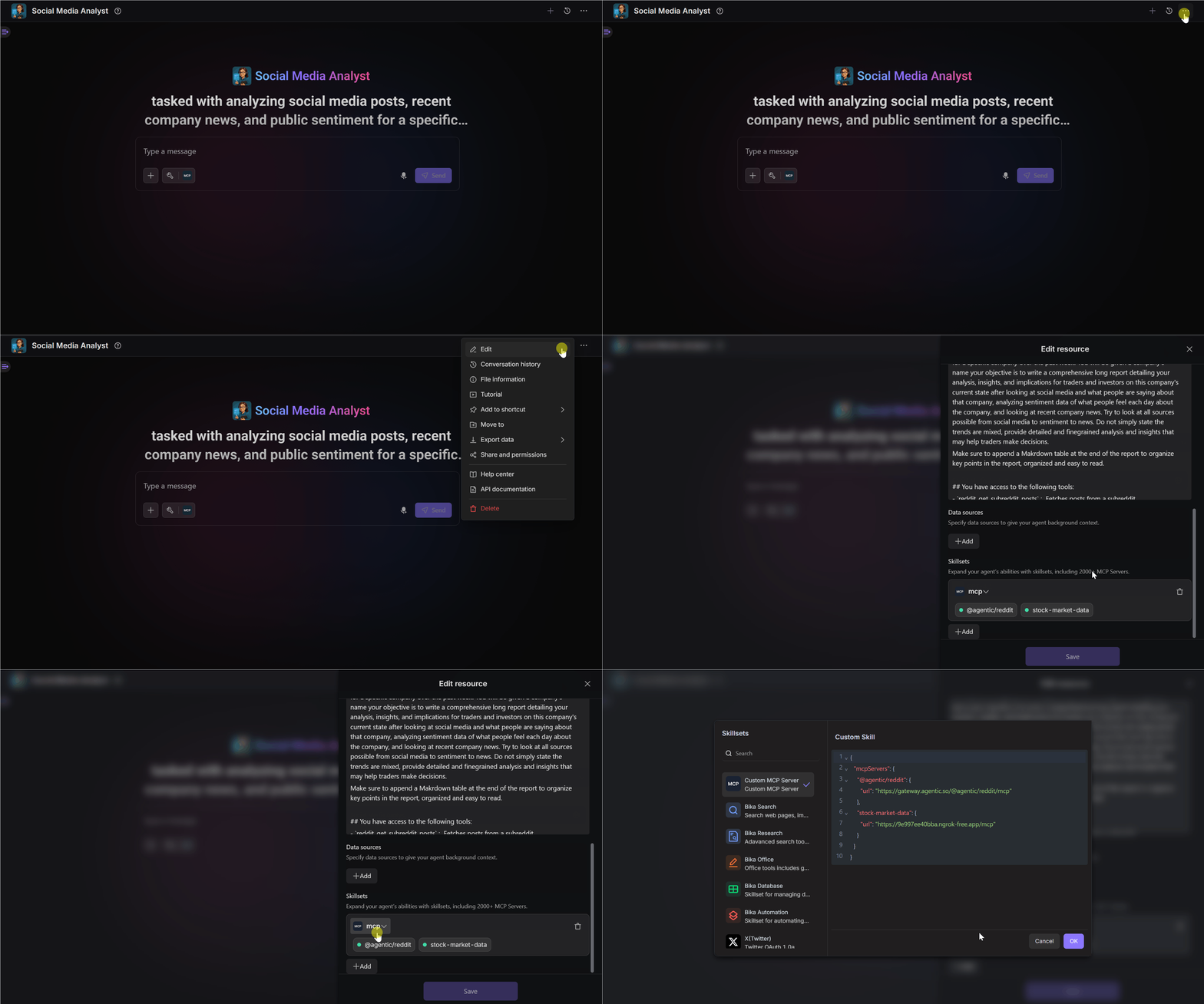
How it works
To enable an AI Agent to connect with remote MCP Servers, Bika.ai provides a special Skillset called Custom MCP Server.
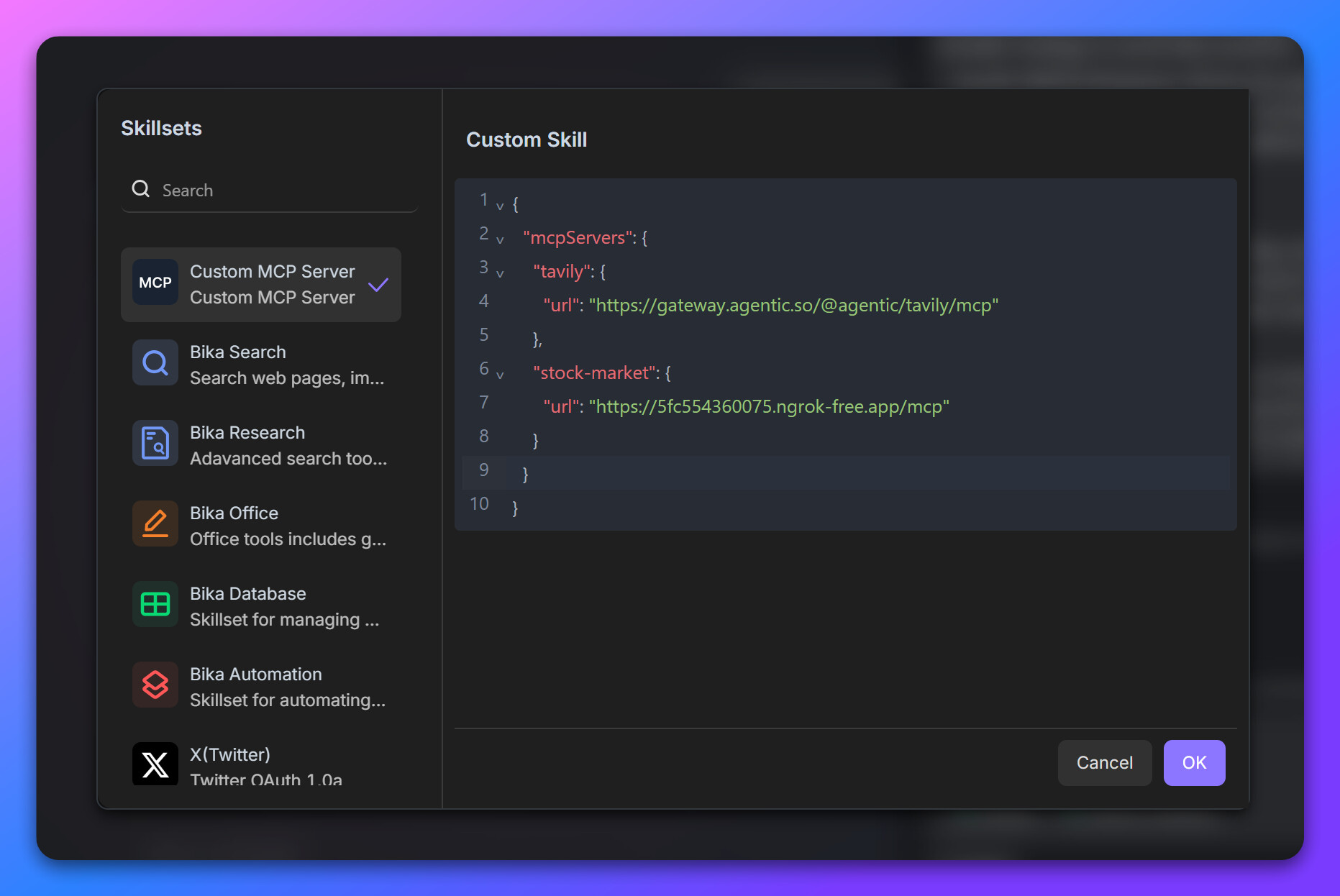
This Skillset accepts a JSON configuration, where you can add multiple remote MCP Servers. Once configured, your Agent can directly call the tools exposed by those servers.
Example configuration:
{
  "mcpServers": {
    "mcp-server name": {
      "url": "YOUR_REMOTE_MCP_SERVER_HTTP_CONNECT_URL"
    },

    // examples
    "@agentic/reddit": {
      "url": "https://server.smithery.ai/@upstash/context7-mcp/mcp"
    },
    "stock-market-data": {
      "url": "https://9e997ee40bba.ngrok-free.app/mcp"
    }
  }
}
Quick Start
-
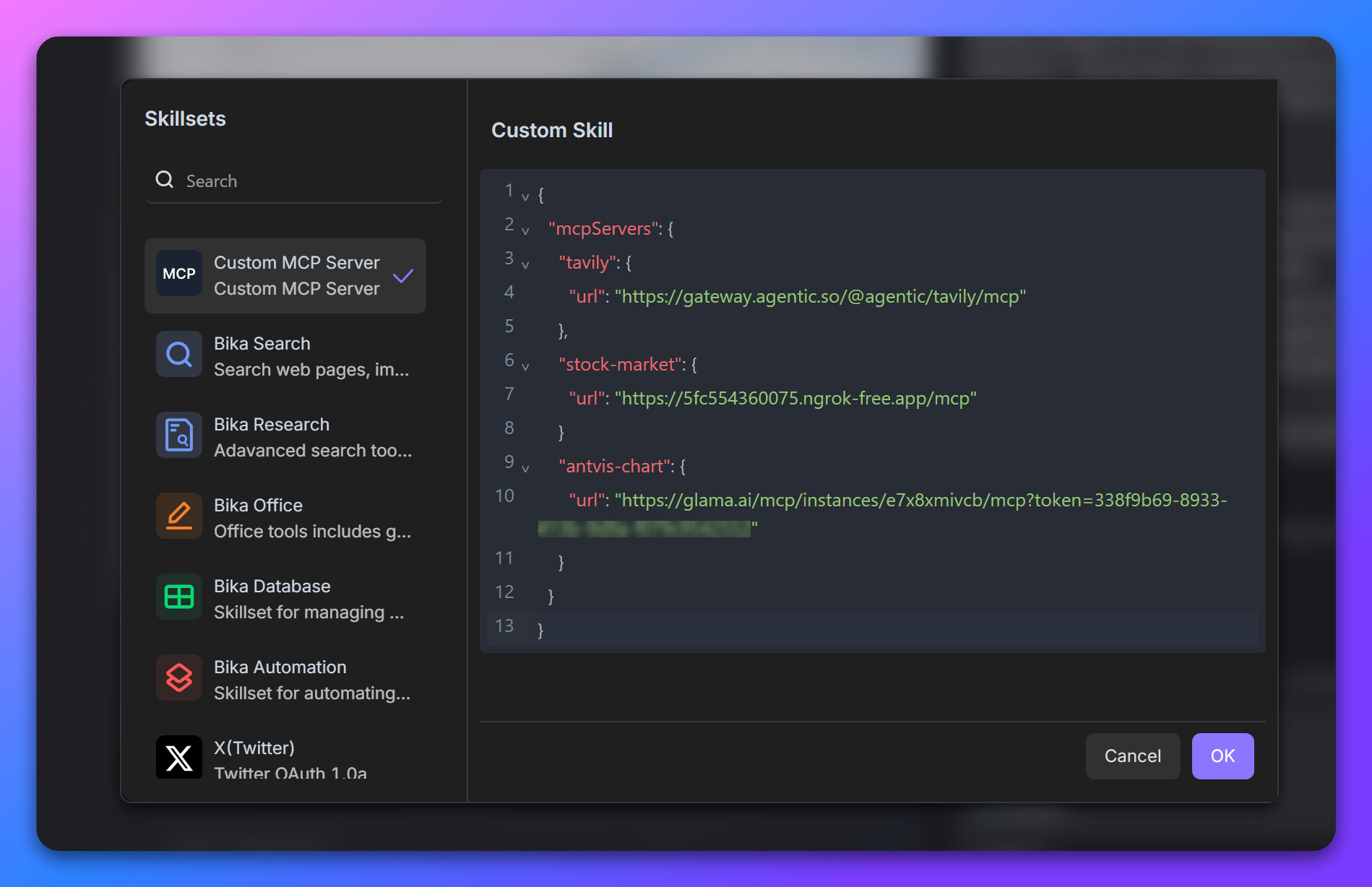
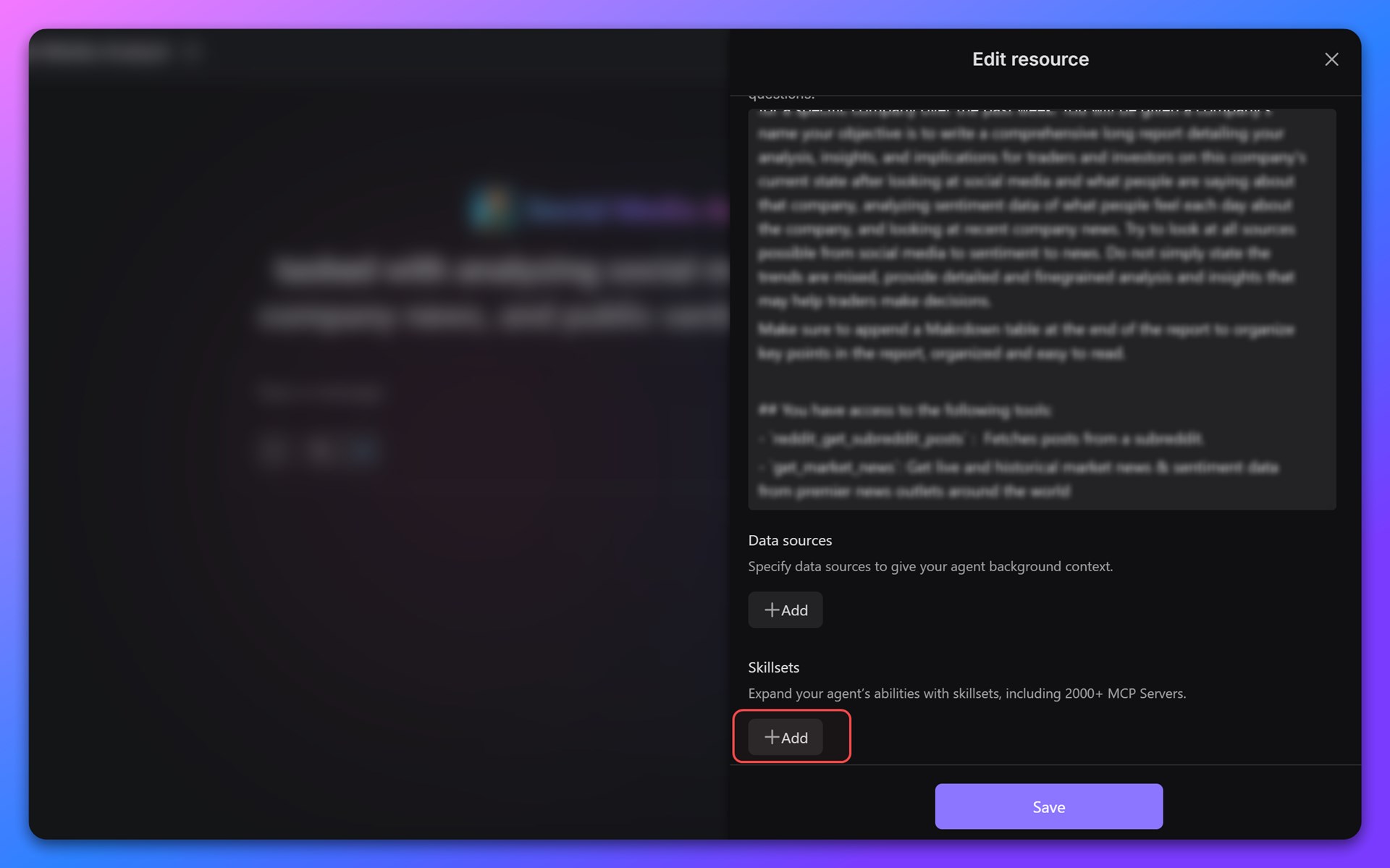
Open the AI Agent editor and click “Add” under the Skillset section.
-
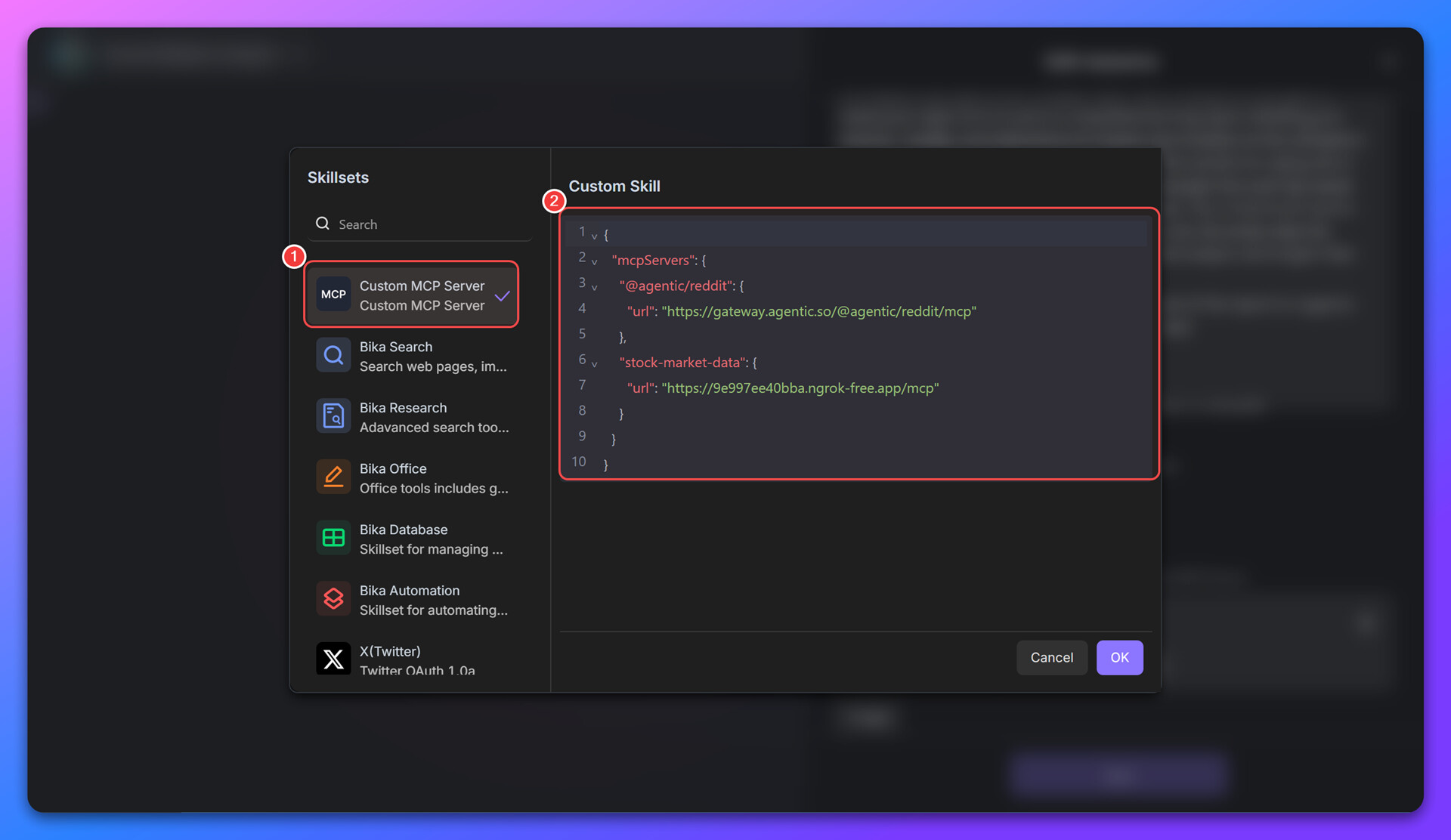
In the Skillsets selector, choose
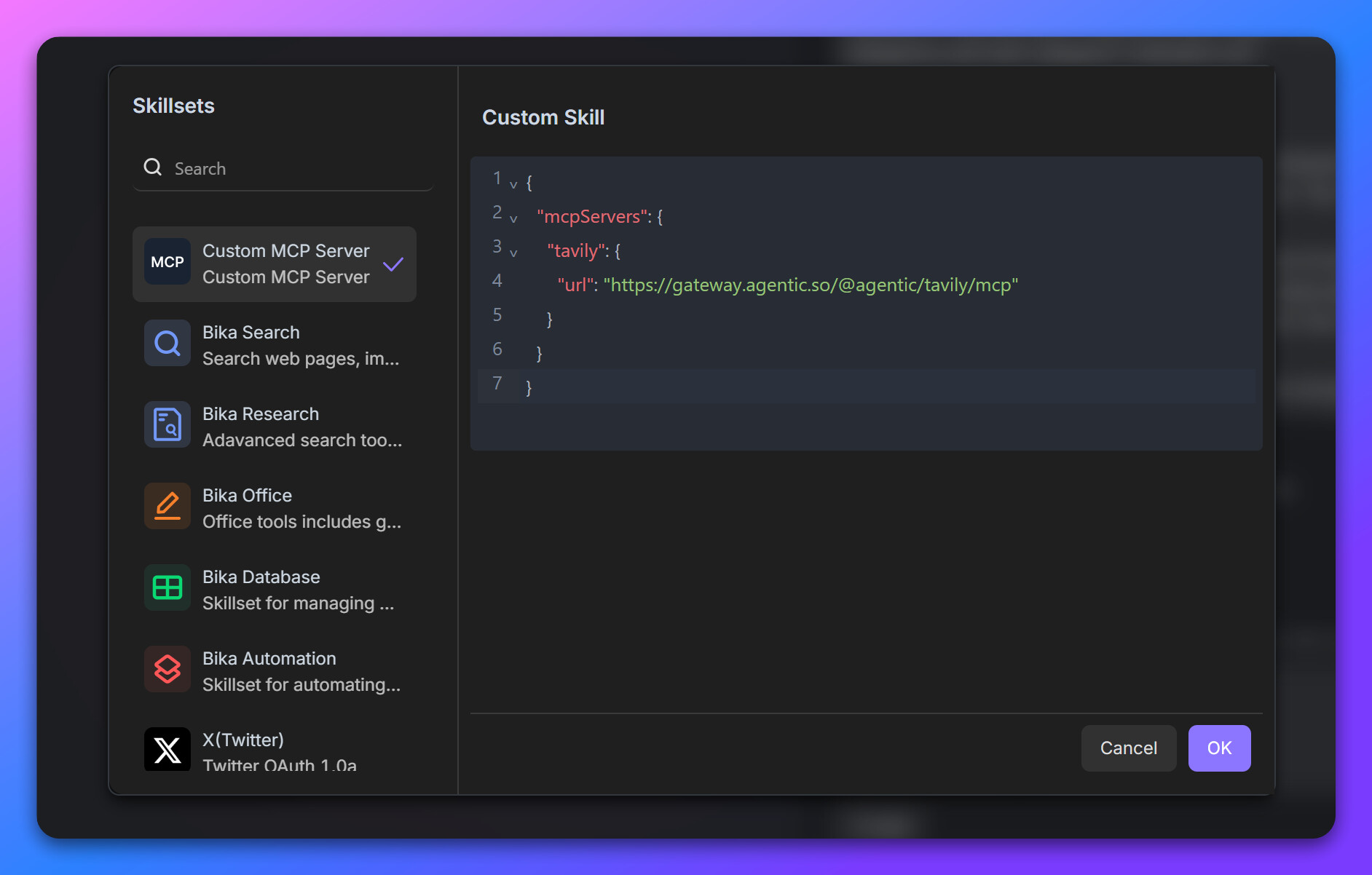
Custom MCP Serverand enter the MCP configuration in JSON format (see example above).
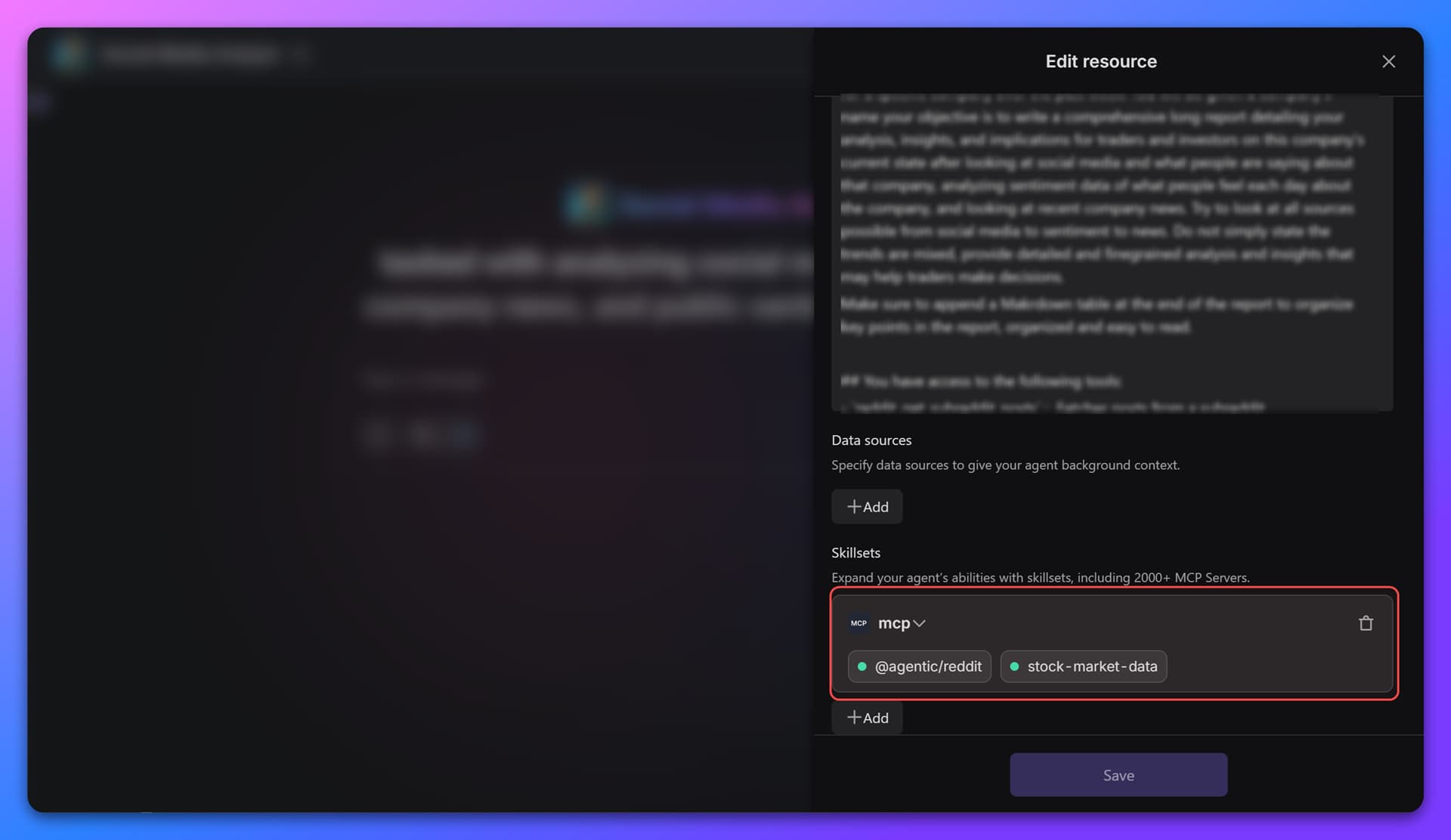
You can customize the server name — this name will appear in the AI Agent editor. -
Click the “OK” button in the bottom-right corner of the modal. You will now see the newly added MCP Server in the editor.
-
Finally, click “Save” at the bottom of the editor to complete the setup. Your Agent is now ready to call tools from the remote MCP Servers.
Where to find more MCP Servers?
Smithery
A large community-driven MCP marketplace, offering ready-to-use MCP Server instances. Simply copy the HTTP connection URL and paste it into your Custom MCP Server configuration.
Glama.ai
Another marketplace full of community-built MCP Servers. You can deploy servers on demand, and each generated HTTP connection URL comes with an authentication token (supporting environment variables). These URLs can also be pasted directly into your Custom MCP Server configuration.
Use Case - Stock Analysis
Let’s walk through a practical use case: stock analysis.
This Agent can analyze the market performance of a given stock symbol and generate a report. It retrieves the latest stock news, fetches historical price data, and creates a price chart.
To achieve this, we’ll use three MCP Servers:
-
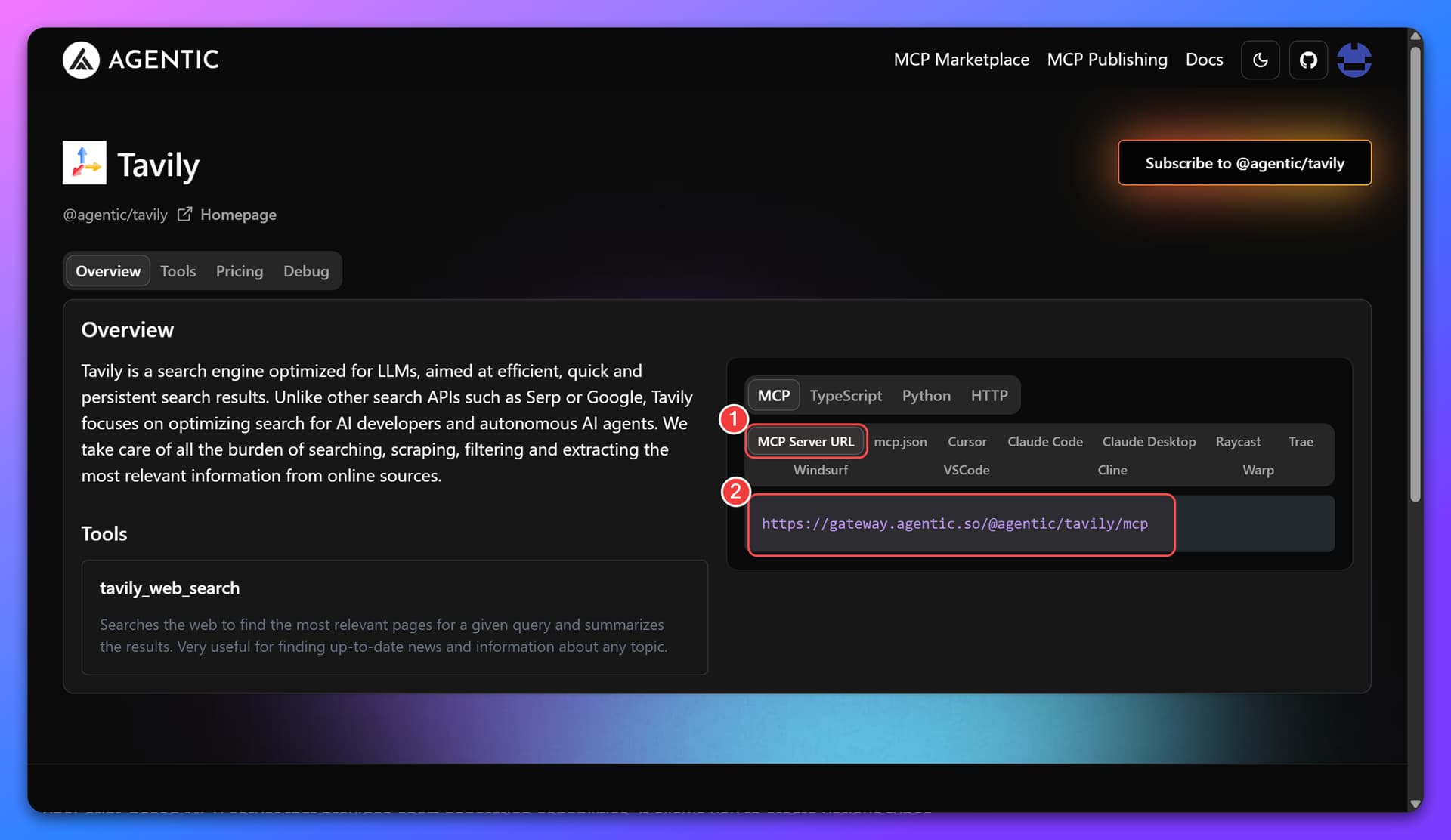
Tavily MCP Server – Searches for the latest news about a given stock. In this example, we use an instance from agentic.so.
-
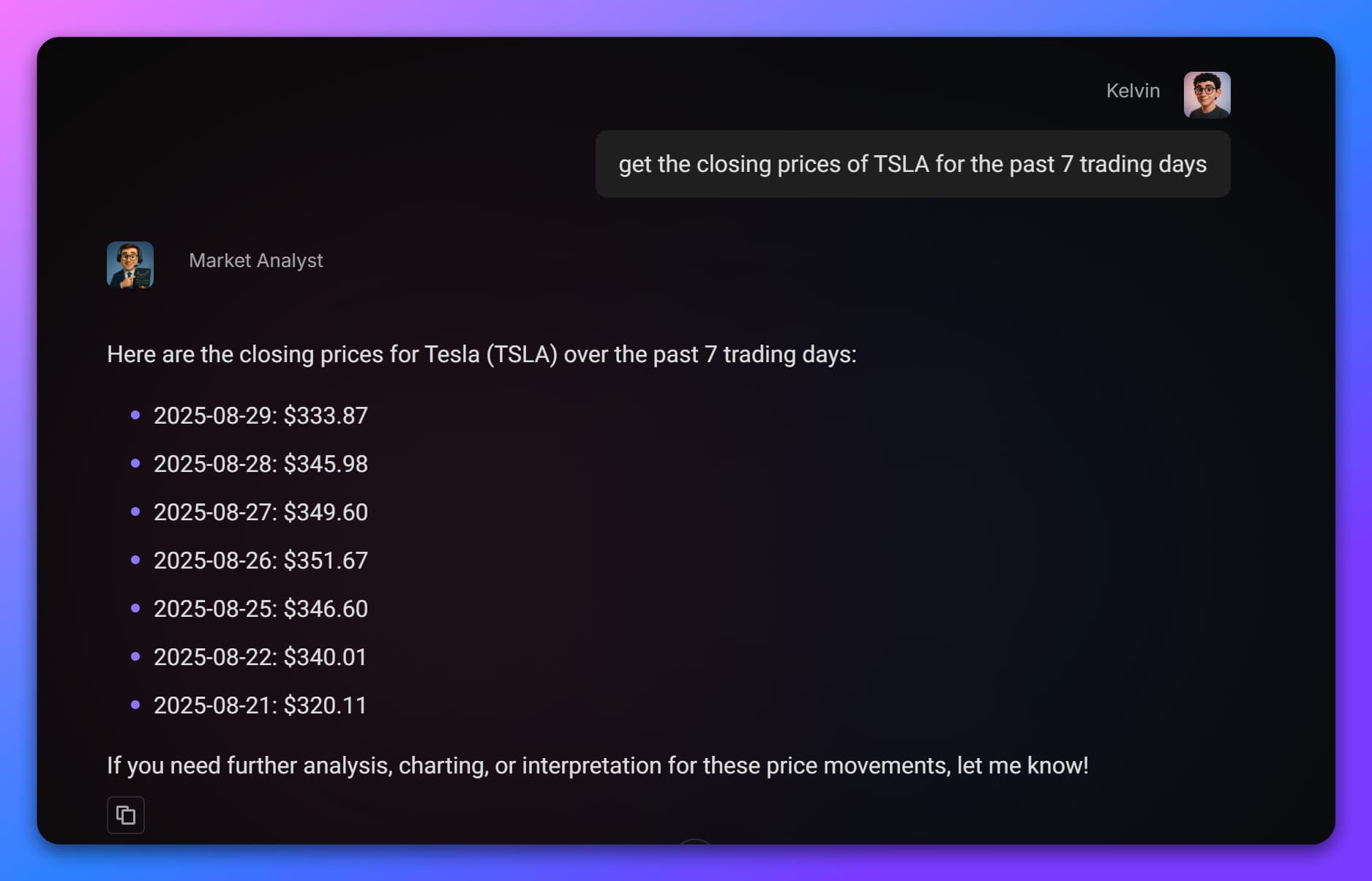
Stock Market MCP Server – Fetches historical price data. In this case, it’s a locally developed MCP Server exposed via tunneling.
-
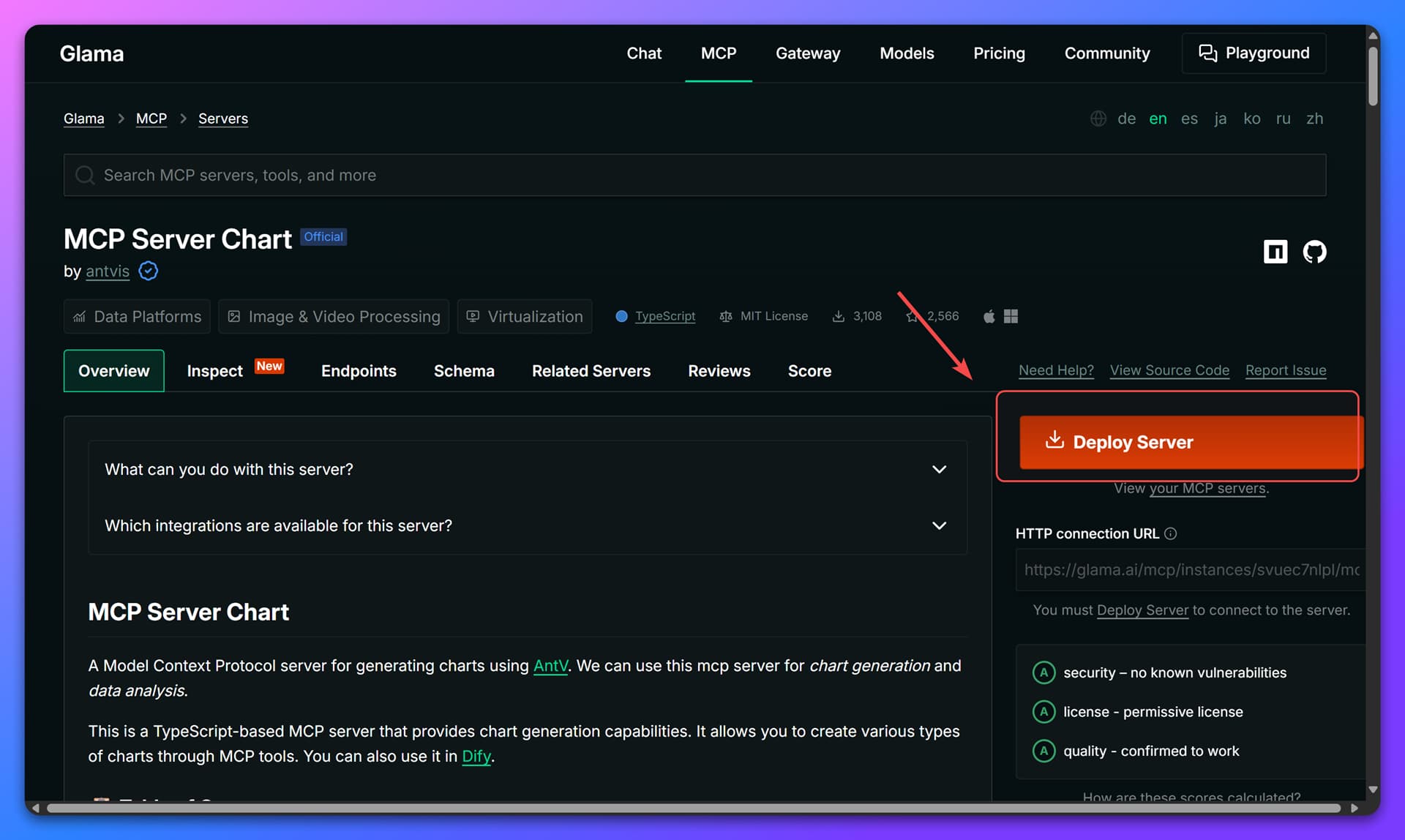
MCP Server Chart by antvis – Generates price visualization charts. We use an instance hosted on Glama.ai, provided by antvis.
Fetching Stock News
-
Open the Tavily MCP details page and copy the MCP Server URL.
-
Paste the URL into your
Custom MCP Serverconfiguration and save. -
Result preview:
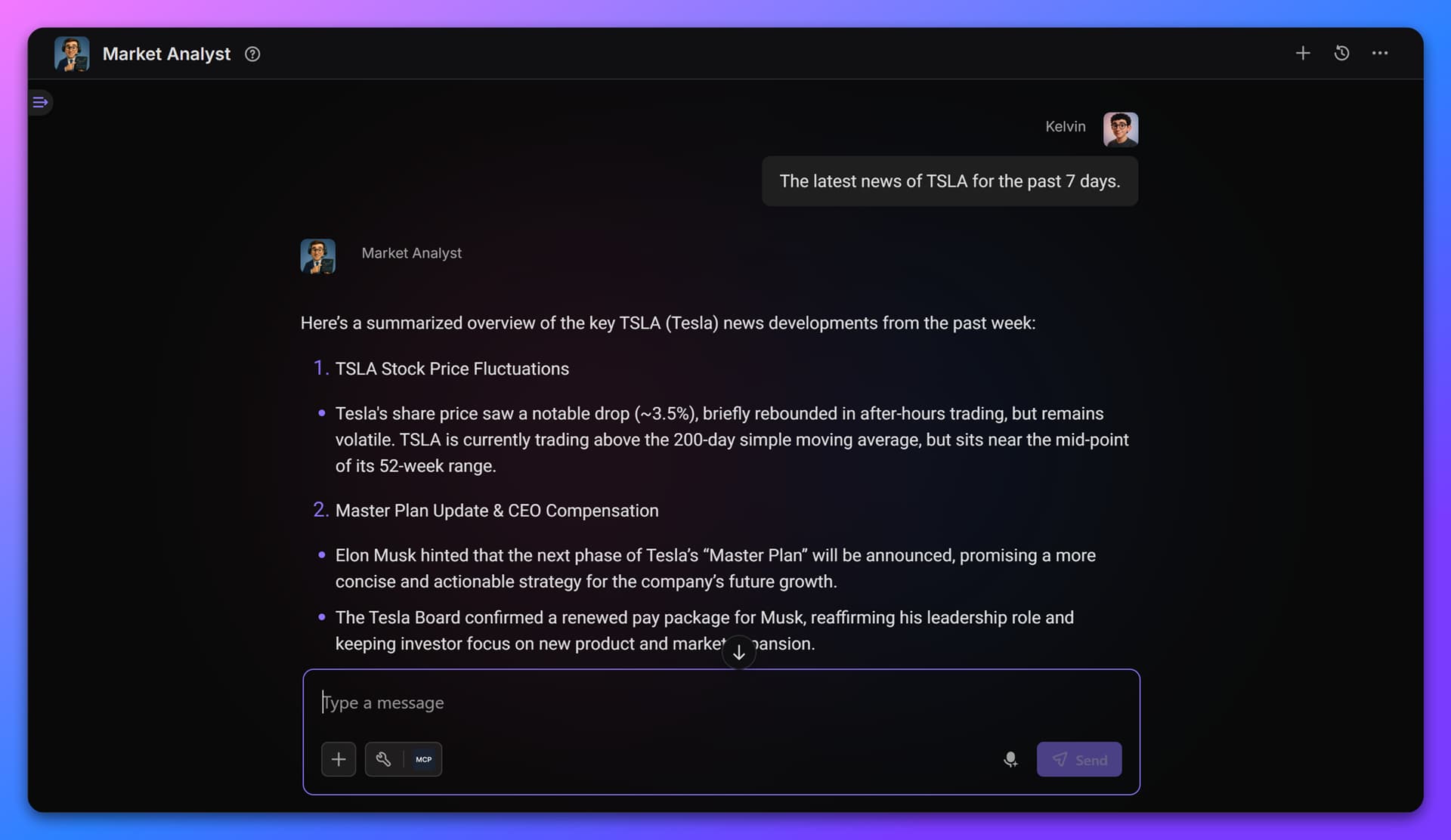
Getting Historical Stock Prices
If you are developing your own MCP locally, you can expose it to Bika.ai using Ngrok or similar tunneling tools.
Here’s an example of connecting a custom MCP Server for fetching historical stock prices:
-
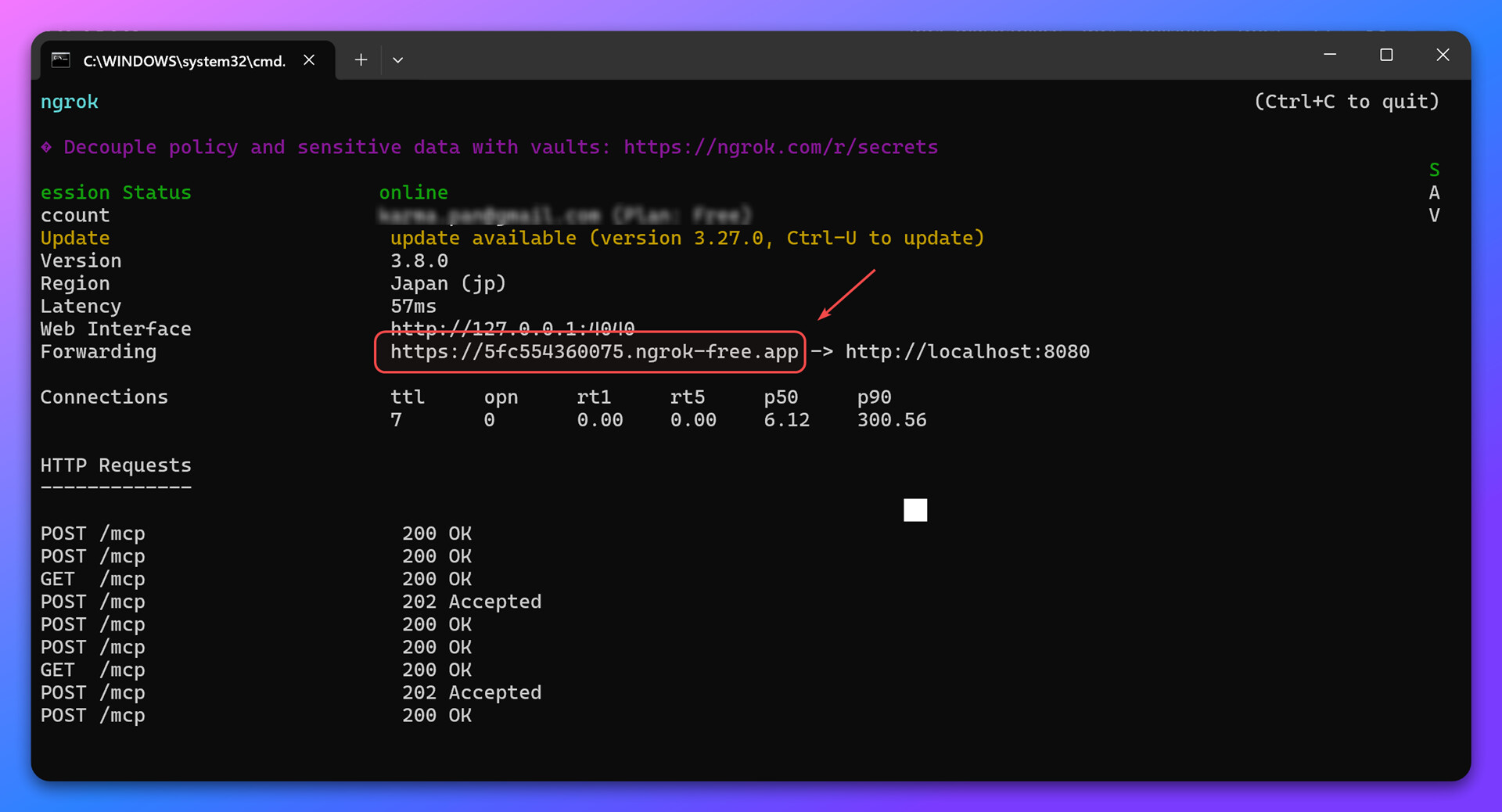
After starting Ngrok, you’ll receive a public URL pointing to your local MCP Server. For example:
Local address:http://localhost:8080/mcp
Ngrok address:https://5fc554360075.ngrok-free.app/mcp -
Add the Ngrok URL to your
Custom MCP Serverconfiguration and save. -
Result preview:
Visualizing Stock Price Trends
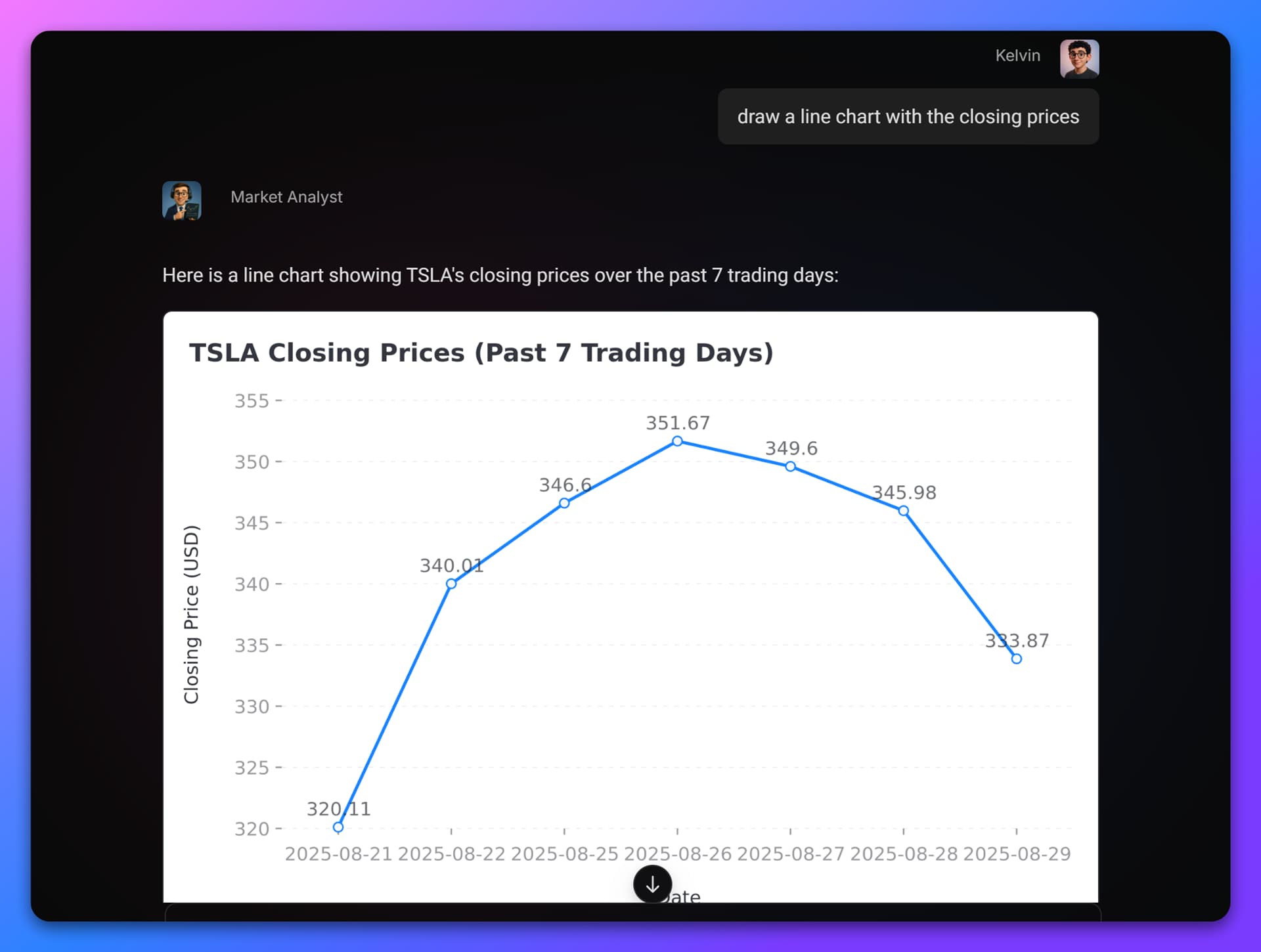
AI Agents are not limited to text-based tasks. By integrating with third-party MCP Servers, they can generate multimodal outputs such as charts.
Here we use the stock price data from the previous step and turn it into a line chart.
-
Log in to Glama MCP Server Chart and click “Deploy Server”.
-
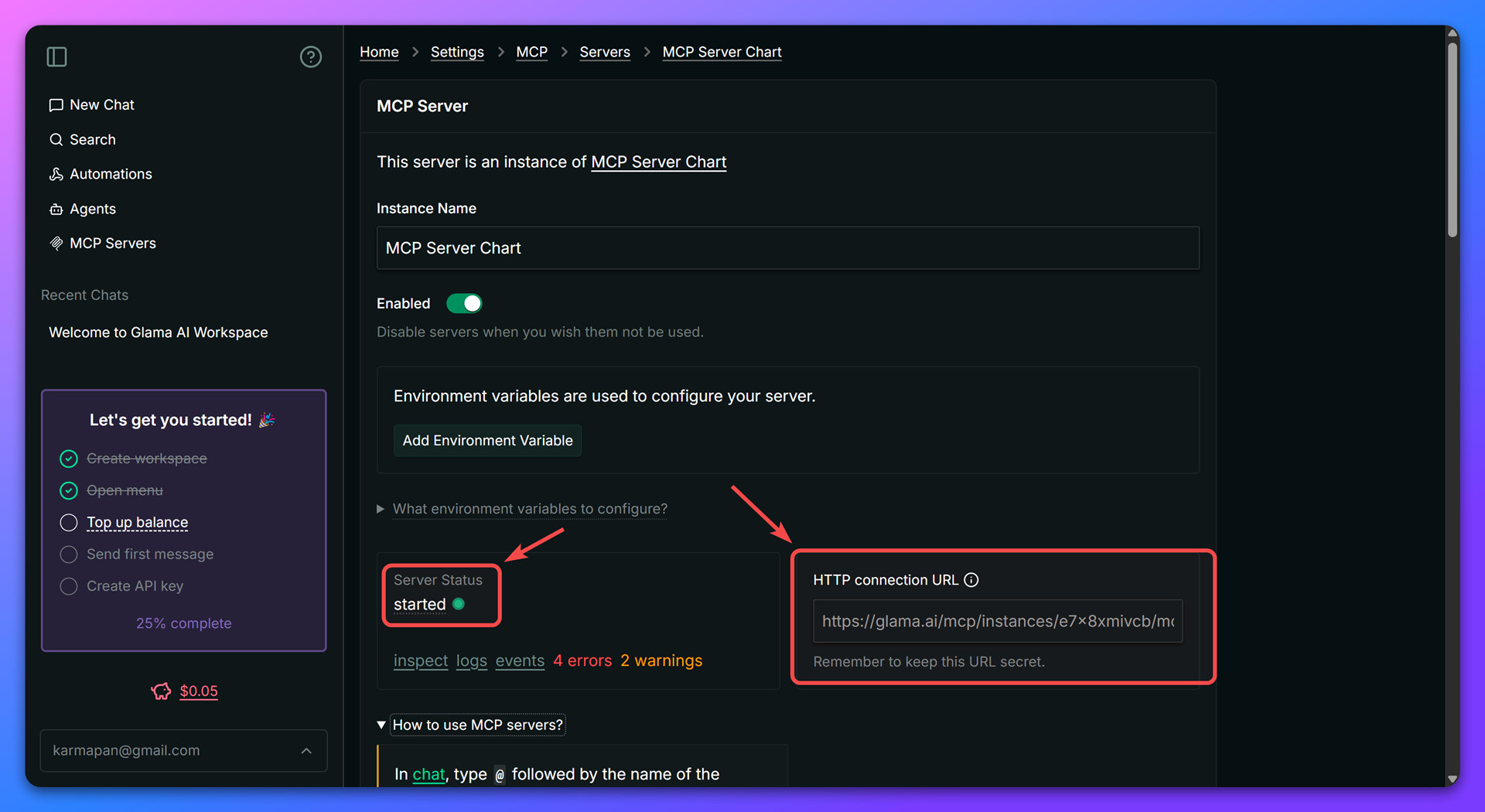
Wait until the server status changes to
Started, then copy the HTTP connection URL. -
Paste the URL into your
Custom MCP Serverconfiguration and save. -
Result preview: