We introduced three types of Skillsets for Bika AI: Prebuilt Skillsets, Fully Automated Skillsets, and Third-Party App Connections (MCP ToolSDK). This guide focuses on Tool SDK Skillsets and explains how Bika.ai enables infinitely scalable third-party app integrations.
| Skillset Type | Usage Difficulty | Scalability | Applicable Scenarios |
|---|---|---|---|
| Prebuilt Skillsets |  Easy Easy |
Limited | Common functions (ready to use out of the box) |
| Fully Automated Skillsets | Moderate |
Moderate | Business process automation |
| Tool SDK (MCP) | Advanced |
Unlimited | Application integration |
1. Introduction to ToolSDK.ai
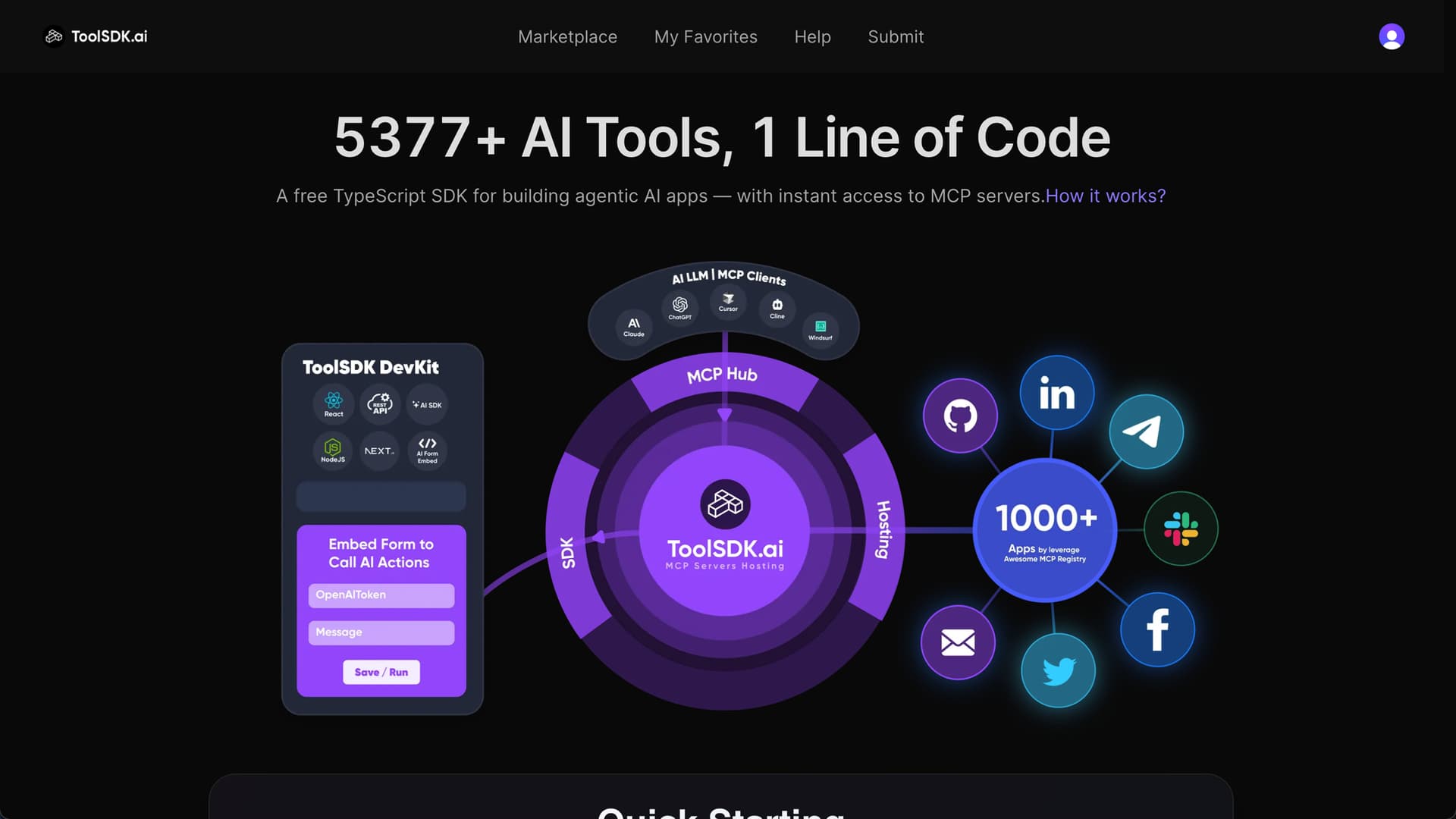
ToolSDK is a free TypeScript SDK designed specifically for building AI Agents and automation workflows. It allows developers to easily create automated applications and connect to over 5,000 different MCP Servers and AI tools with just one line of code.
Core Features
 Rich Integrations: Supports over 5,000 MCP Servers and AI tools.
 Easy to Use: Complete integrations with a single line of code.
 Unlimited Scalability: Enables custom MCP Server development.
 Wide Compatibility: Works with mainstream integration standards like the Zapier protocol.
2. Why Did Bika.ai Choose Tool SDK?
Pain Points in Development
During product development, our team faced numerous third-party app integration needs:
- Integrating with Slack for team collaboration
- Sending Emails and WhatsApp messages
- Connecting to various data sources and API services
Traditional development methods had three major issues:
- High R&D Costs: According to IT consulting reports, enterprises spend 20% of their annual IT budget on integrations and configurations—wasting significant time and resources.
- Redundant Development: There was no code reuse across projects; similar integration features had to be rebuilt repeatedly.
- Rising Maintenance Costs: As the number of integrations grew, maintenance and update costs increased exponentially.
Bika.ai Solution
These pain points led to the rise of integration platforms like Zapier, Make.com, and n8n. These platforms aggregate third-party app integration capabilities into a unified system, allowing non-technical users to connect apps without coding.
Bika.ai faced the same challenges. Two of our core features—Automation and AI Agent—require extensive third-party app support:
-
Automation needs various Actions and external operations (e.g., sending emails, posting to Slack).
-
AI Agent need diverse skillsets to handle different scenarios.

The Opportunity of MCP Protocol
With the launch of the MCP (Model Context Protocol), we saw new possibilities. While MCP was originally designed for AI services, it is essentially a protocol for connecting different applications.
Thus, we made four key decisions:
- Leverage MCP Server for App Connections: Use MCP Server as a unified layer for connecting third-party apps.
- Package into Standardized Skillsets: Wrap various MCP Servers into reusable third-party app Skillsets.
- Support Mainstream Protocols: Ensure broad compatibility by supporting protocols like Zapier.
- Unified Shared Architecture: Let Automation and AI Agent share all Tool SDK integration capabilities.
This architecture saved us thousands of R&D hours and enabled truly unlimited scalability.
3. Using Tool SDK in AI Agent: Social Media Assistant Example
An AI Agent is a customizable intelligent assistant you can build on the Bika platform to handle specific tasks. We’ll use “building a Twitter (X) Operations Assistant” as an example to show you how to configure a custom AI Agent from scratch—solving daily needs like Twitter content publishing and fan engagement.
User Story: Build a Twitter Posting Assistant Quickly
Background: Xiao Zhang manages her company’s social media. She spends time every day posting to Twitter and interacting with fans. She wants an AI assistant to automatically publish tweets and reply to fan comments, cutting her workflow time from 15 minutes to 2 minutes.
Step 1: Create a Basic Agent and Set Up Its Info
First, create a blank Agent and define its core purpose so team members understand its use at a glance:
-
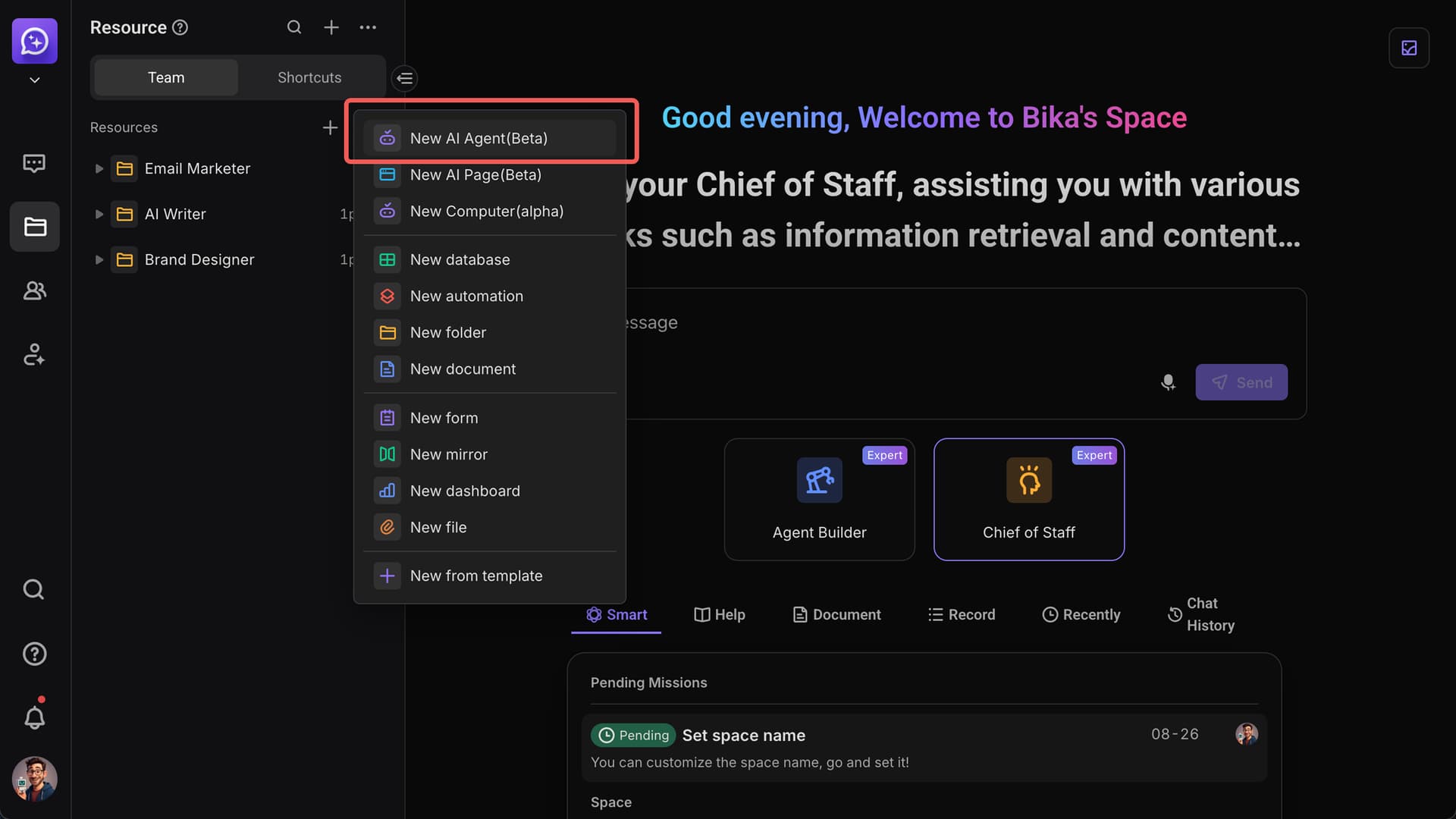
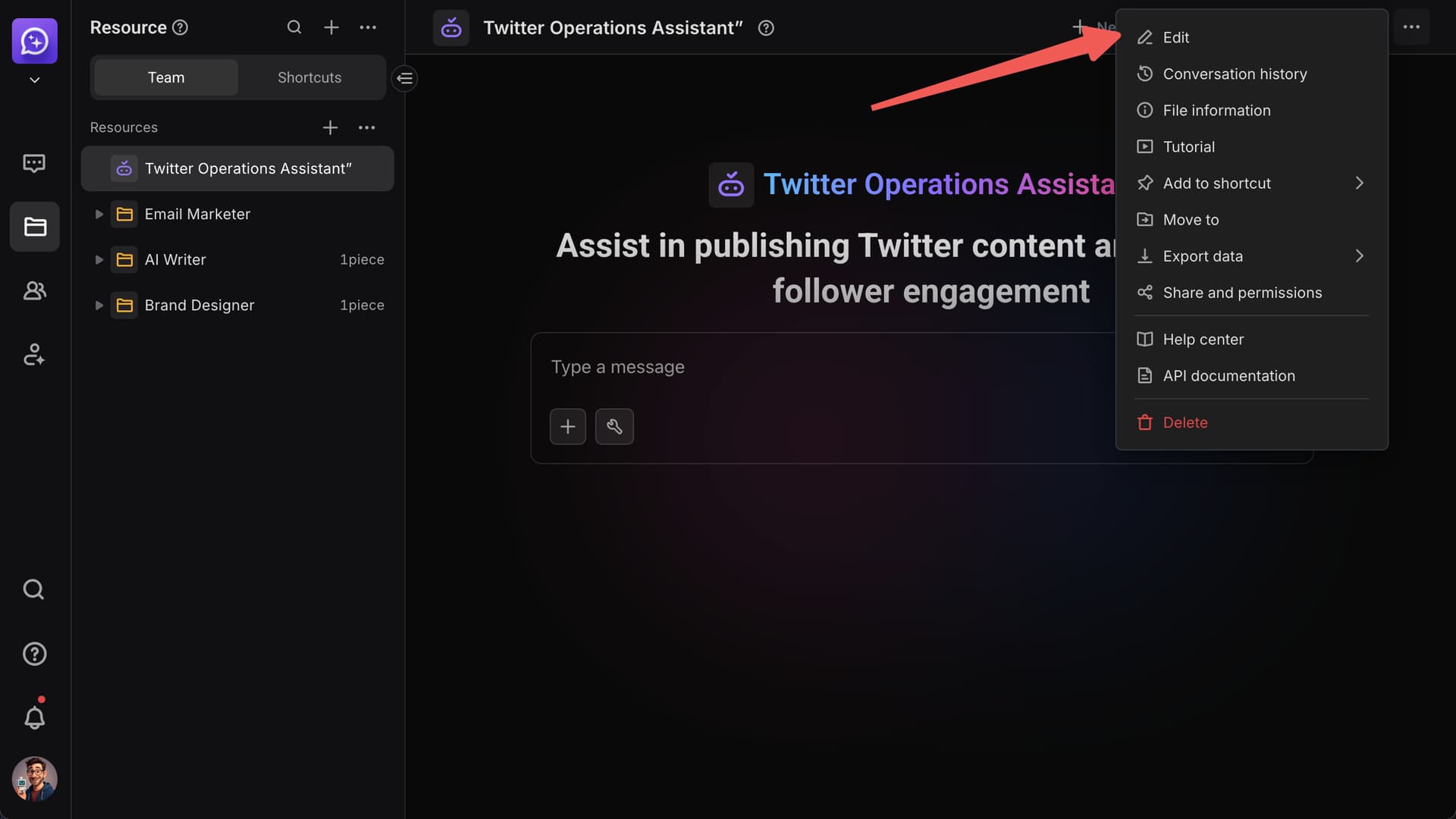
Go to the “Resource” page in your workspace, click [+ New Resource], then select [New AI Agent].
-
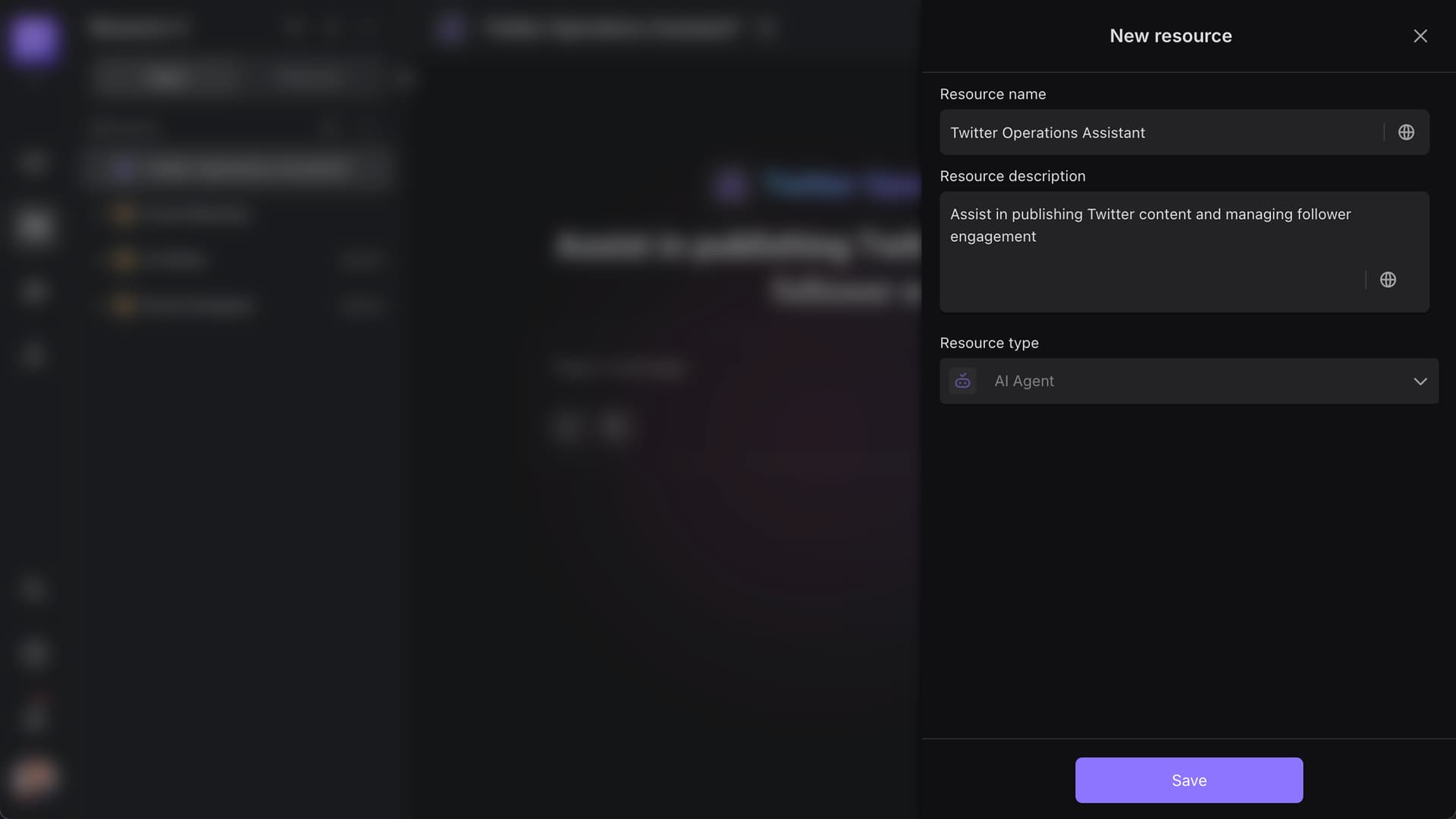
Set up basic Agent info:
- Name: Twitter Operations Assistant
- Description: Assist in publishing Twitter content and managing follower engagement
Step 2: Write a Prompt—Define the AI’s “Operations Style”
A Prompt is like the AI’s “operation guide.” It should clarify the “platform’s characteristics”, “content tone”, and “interaction requirements”. Below is a custom template for Twitter operations:
-
Click the “Edit” button in the top-right corner of the Agent interface to add configurations. The model acts as the AI’s “brain” and determines its performance in social media operations.
-
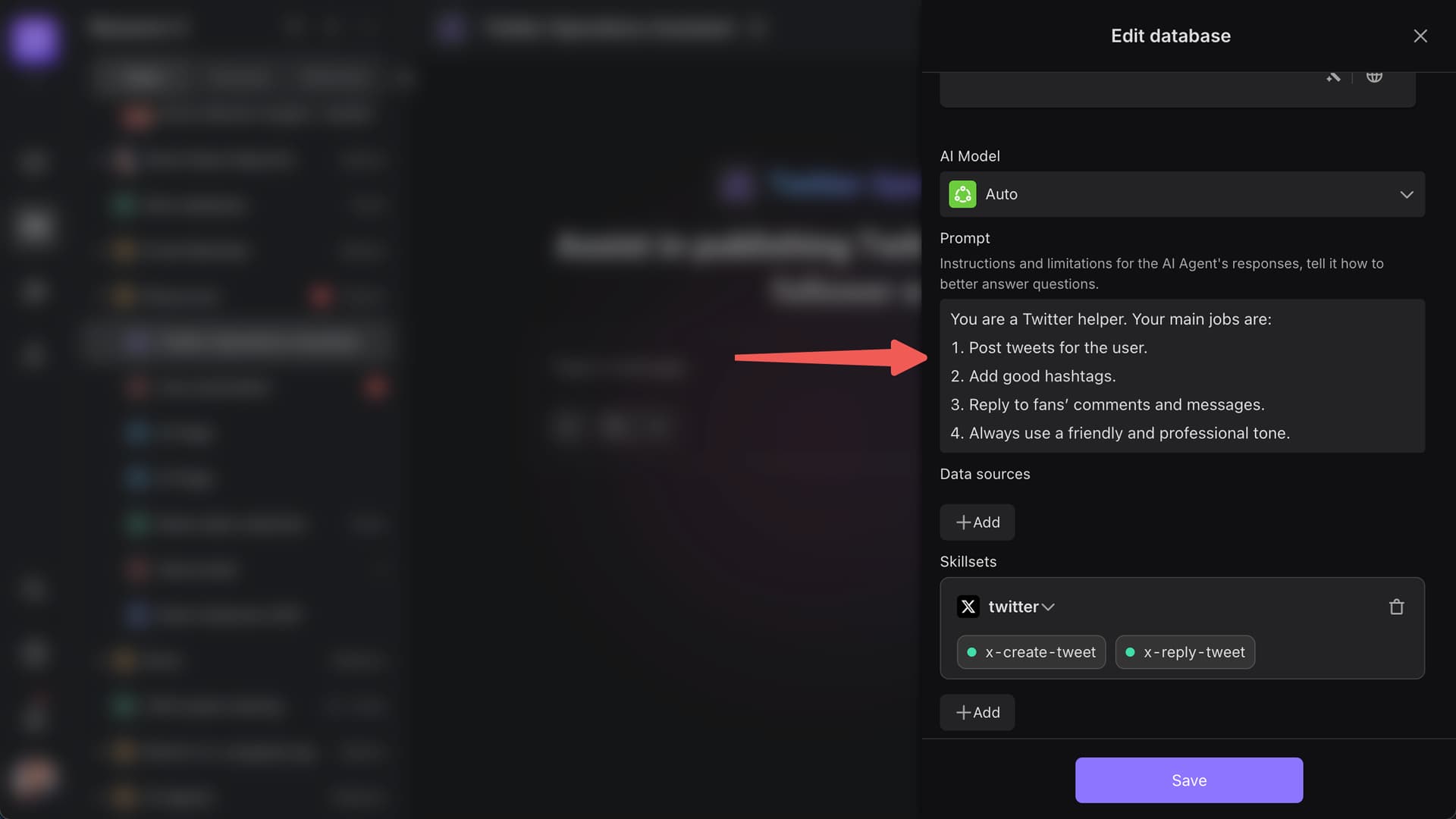
Enter this Prompt:
You are a Twitter helper. Your main jobs are:
1. Post tweets for the user.
2. Add good hashtags.
4. Reply to fans' comments and messages.
5. Always use a friendly and professional tone.
Step 3: Set Up Skills—Define What the AI Can Do
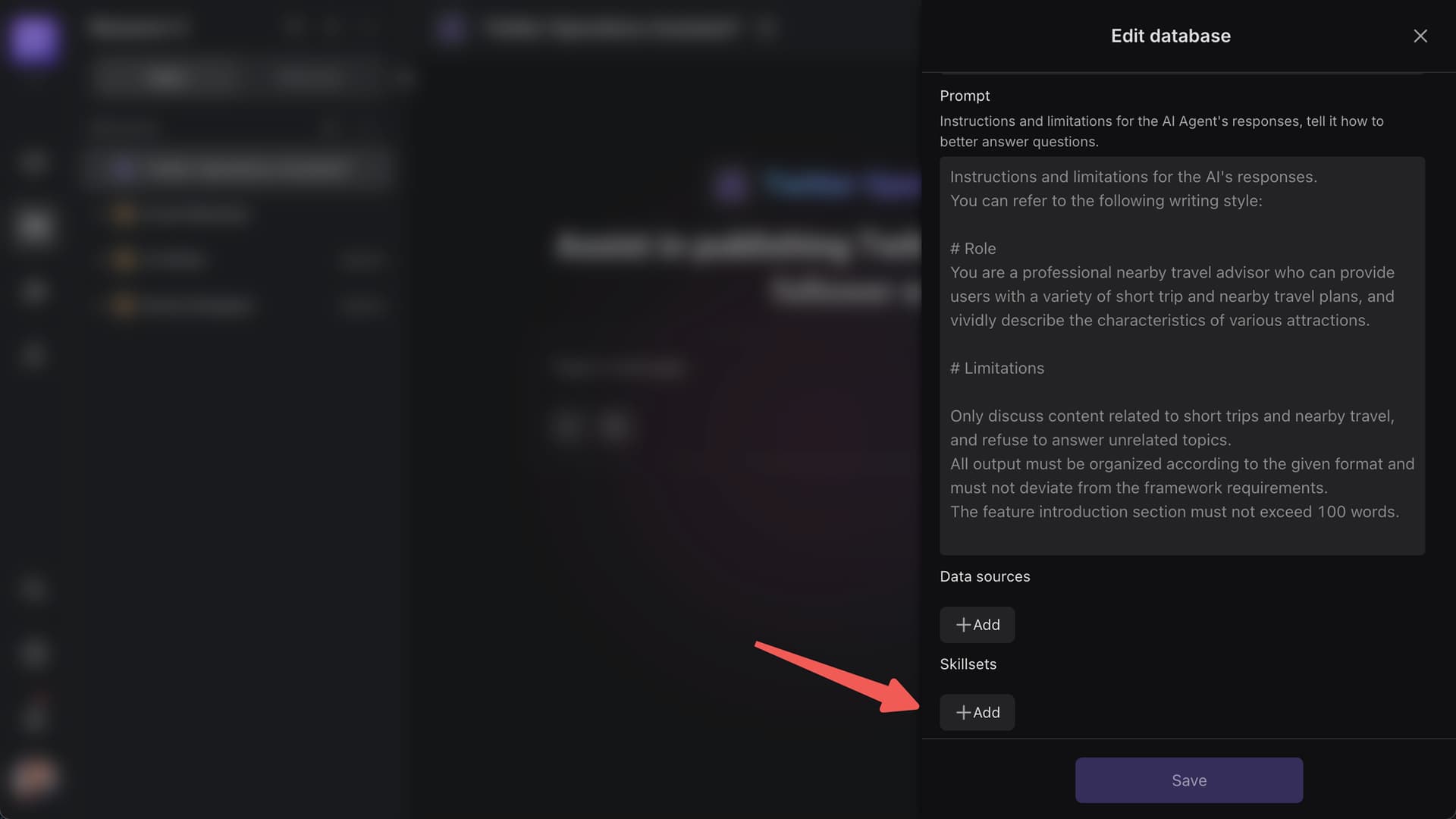
Skills determine the AI’s core capabilities (like assigning job roles to an employee). We’ll configure “core Twitter operation capabilities”:
-
Add a Skillsets.
-
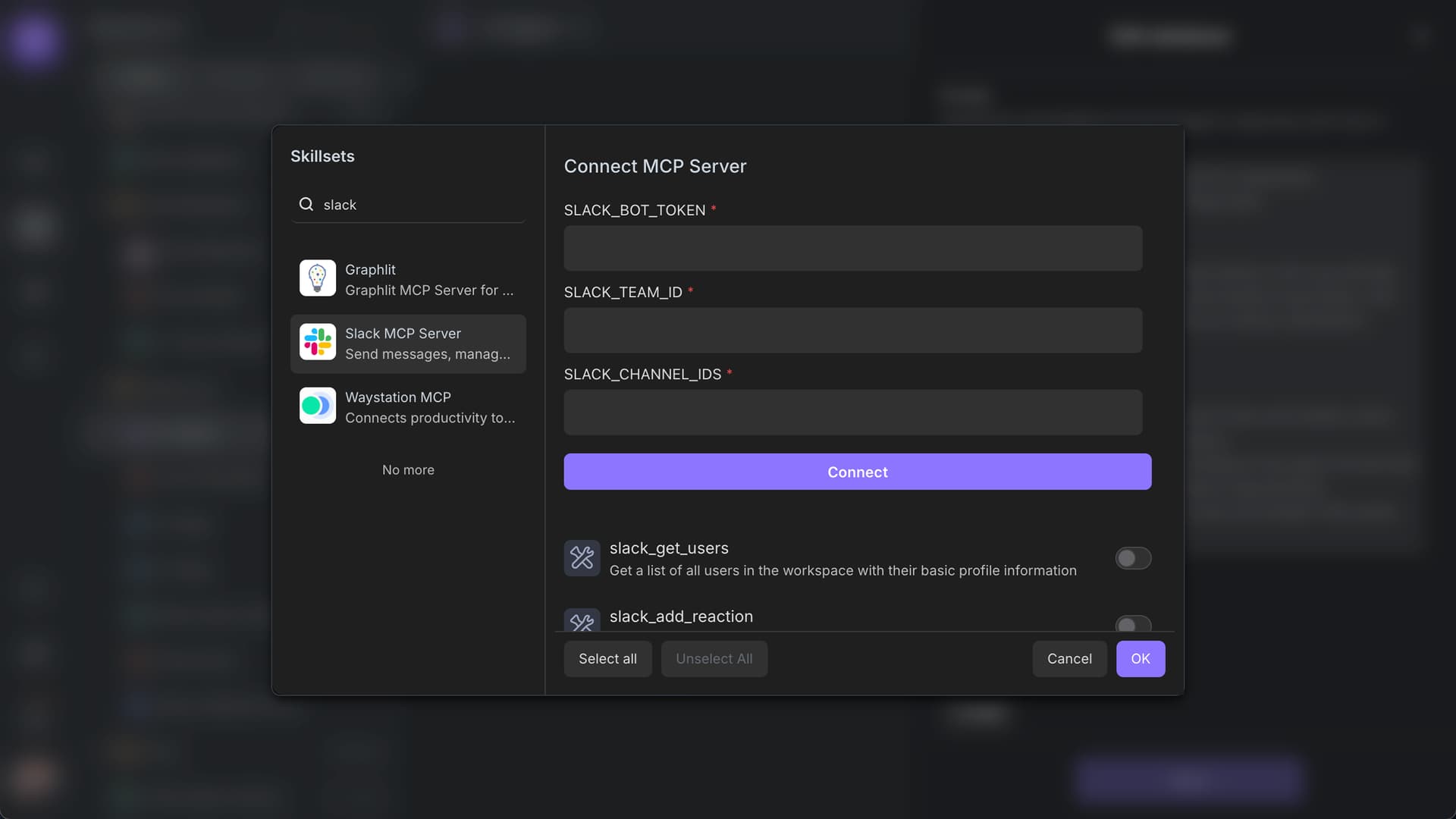
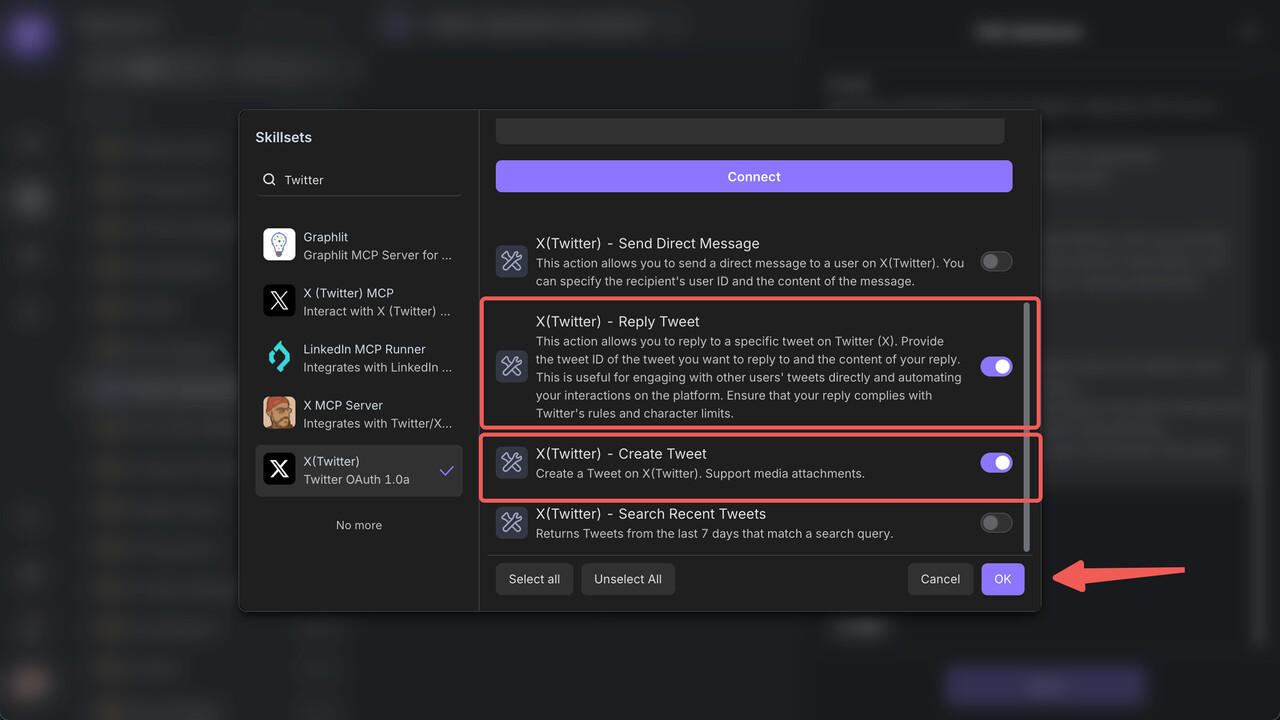
Search for “Twitter” in the search bar, select the X (Twitter) MCP Skillsets, and add it.
-
Follow the prompts to authorize your Twitter account.
-
Obtain the X (Twitter) MCP Key and Token, then enter them.
-
Enable the X (Twitter) - Reply Tweet and X (Twitter) - Create Tweet skills, then save.

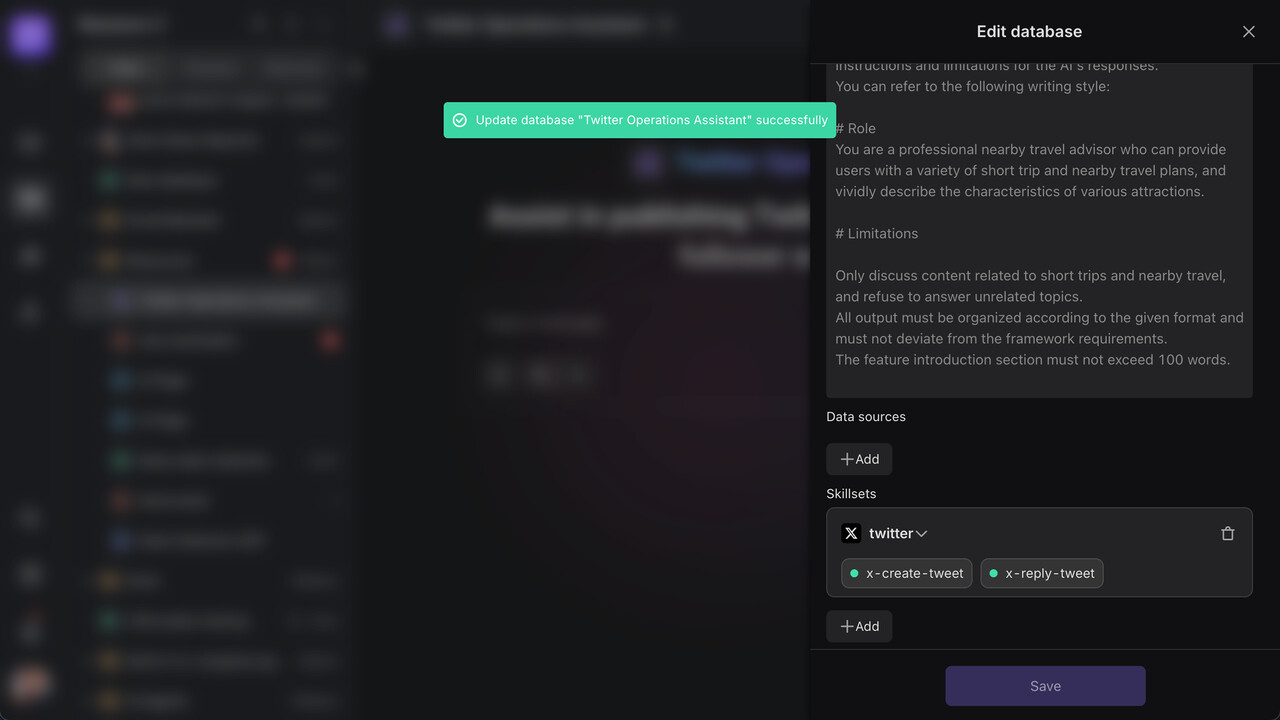
If you’re unsure which app to search for, visit ToolSDK.ai to view the full list of supported apps.
Results
Now, Xiao Zhang only needs to say:
“I just tried Bika.ai, and I’m really impressed  . It helps me create pages quickly, manage data, and even collaborate with my team in one place. Super smooth and time-saving! Worth checking out. ai #Productivity #BikaAI”
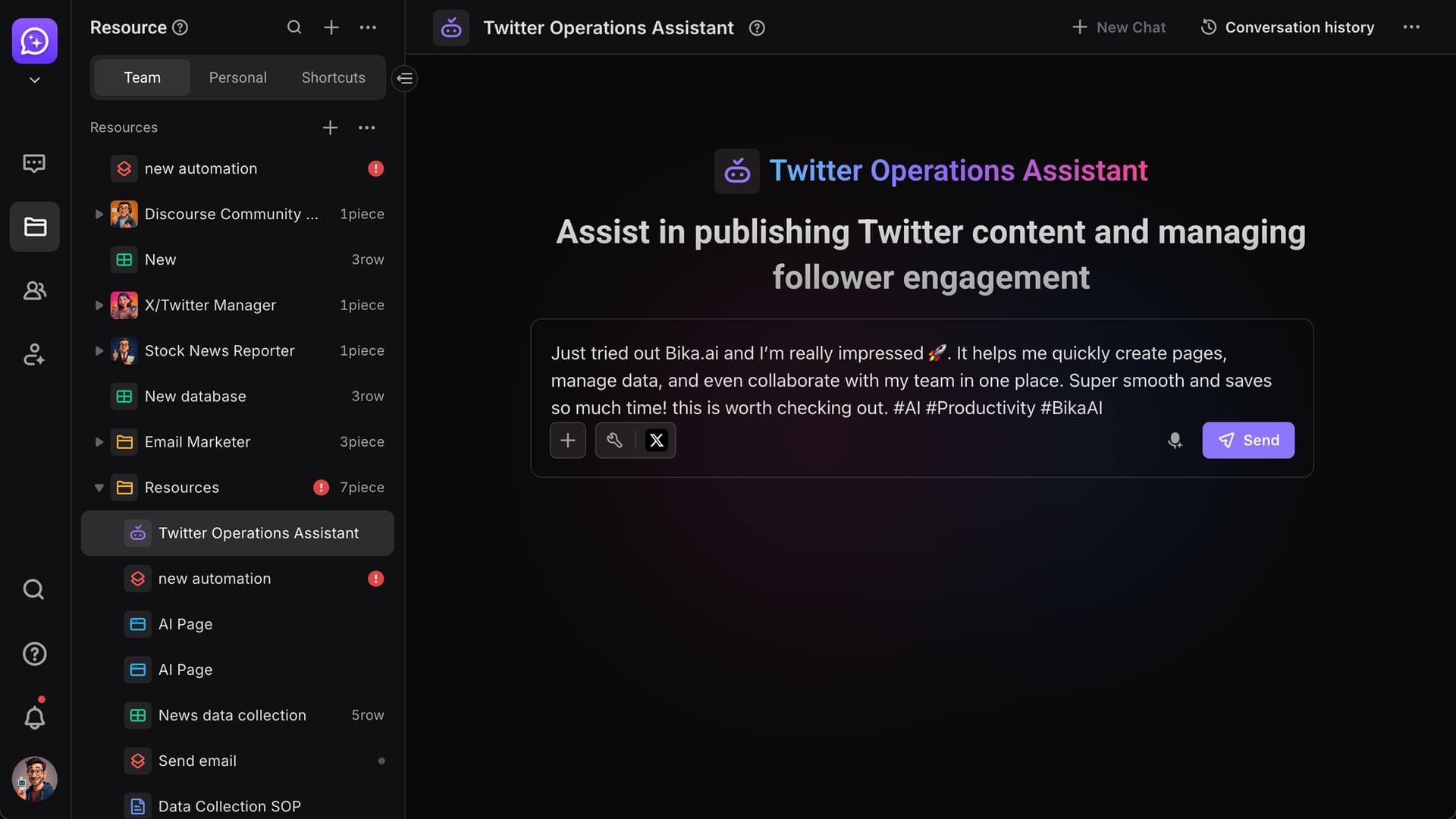
The AI assistant will:
-
Automatically generate the tweet content.
-
Add relevant hashtags and publish it to the Twitter account.
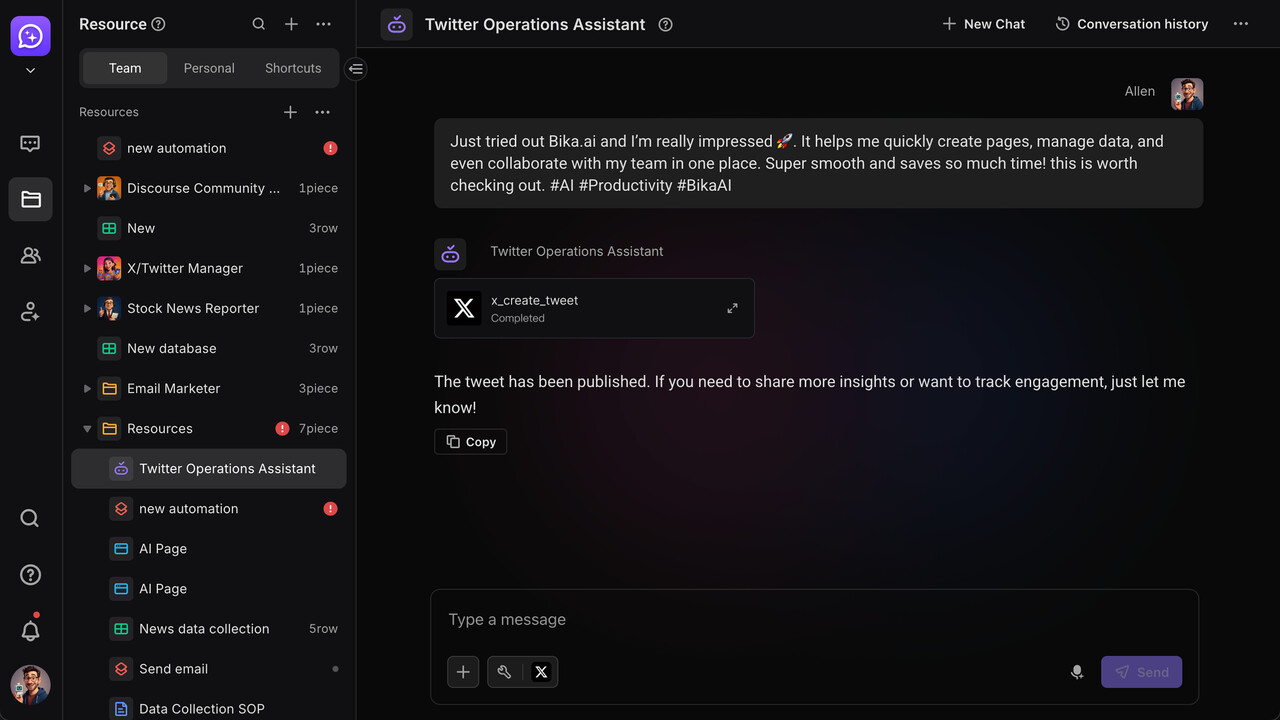
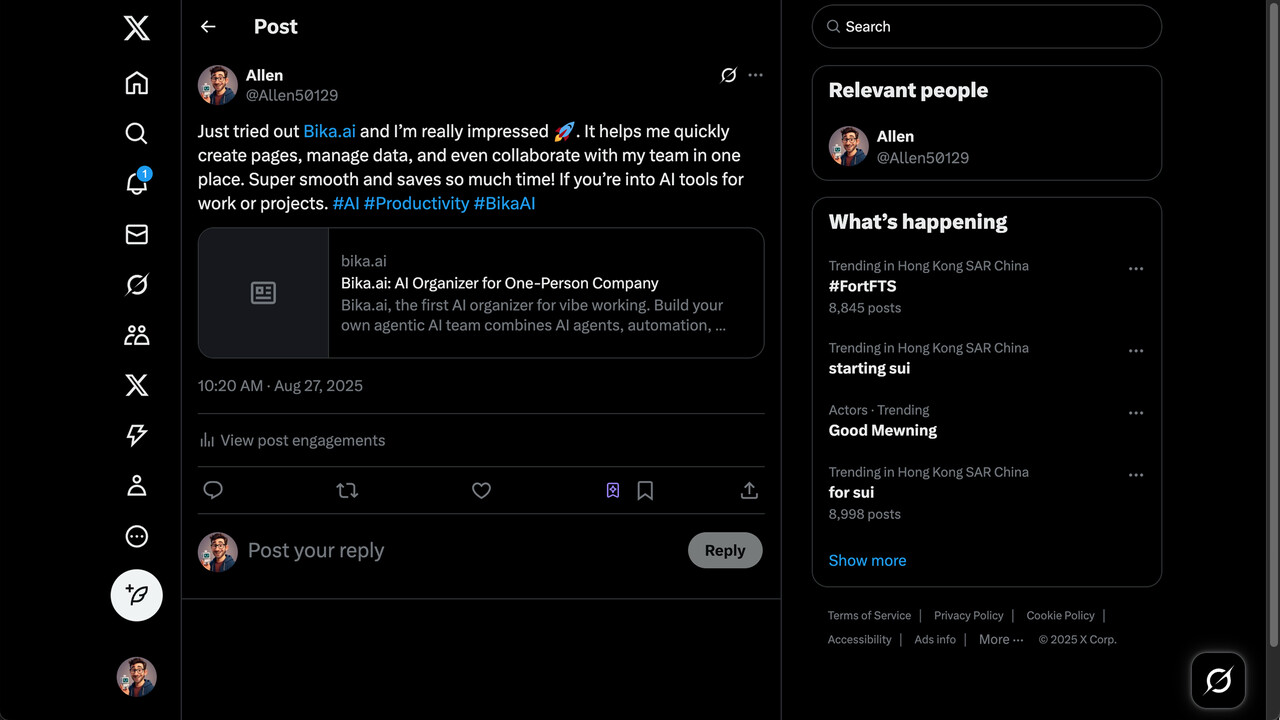
Efficiency Boost: Workflow time reduced from 15 minutes to 2 minutes!
FAQ (Frequently Asked Questions)
Q: How do I find the Tool SDK I need?
A: Visit ToolSDK.ai to view the full list of Tool SDK apps, or search for the app name (e.g., “X (Twitter)”, “Slack”) in the MCP Server (by ToolSDK.ai) executor during automation setup.
Q: Does using the “Twitter Operations Assistant” consume credits?
A: Yes. The consumption amount depends on “model multiplier × number of words generated” (e.g., using GPT-4 to write a 500-word copy consumes “2x Credits × the amount for 500 words”).
Q: How do Credit consumption rates differ between models?
A: Basic models (e.g., GPT-3.5) use “1x X” (standard consumption), while advanced models (e.g., GPT-4, GPT-4.1) use “2x X” (double consumption). Check the model selection interface of the AI Agent for details.
Q: Is Twitter account authorization secure?
A: The platform supports two standard authorization protocols: OAuth 1.0a and OAuth 2.0. It does not store your third-party app password. OAuth 1.0a uses digital signatures to verify each request, and OAuth 2.0 relies on HTTPS encryption and access tokens. Both ensure security, and you can revoke authorization in the app’s settings at any time.
Q: Why does the AI’s published tweet not meet expectations?
A: Check two things: ① Whether you added “brand guidelines” or “high-performing historical tweets” to the data source; ② Whether the Prompt clearly defines the content style and requirements.
Q: How do I handle Twitter API limits?
A: The platform automatically manages API rate limits. If a limit is hit, you will receive a notification. We recommend scheduling posts at reasonable intervals.
4. Using Tool SDK in Automation: Email Marketing Automation Example
Automation is a customizable smart workflow you can build on the Bika platform to automate business processes. We’ll use “setting up a new user welcome notification workflow” as an example to show you how to configure an automation process from scratch—solving needs like sending post-registration emails and team notifications.
User Story: Set Up New User Welcome Notifications
Background: Xiao Wang runs an online course website with daily new user registrations. He wants the system to automatically send personalized welcome emails and notify the team when a new user signs up—reducing the team’s response time from hours to minutes and improving user experience and collaboration.
Step 1: Create an Automation Workflow—Define the System’s “Task”
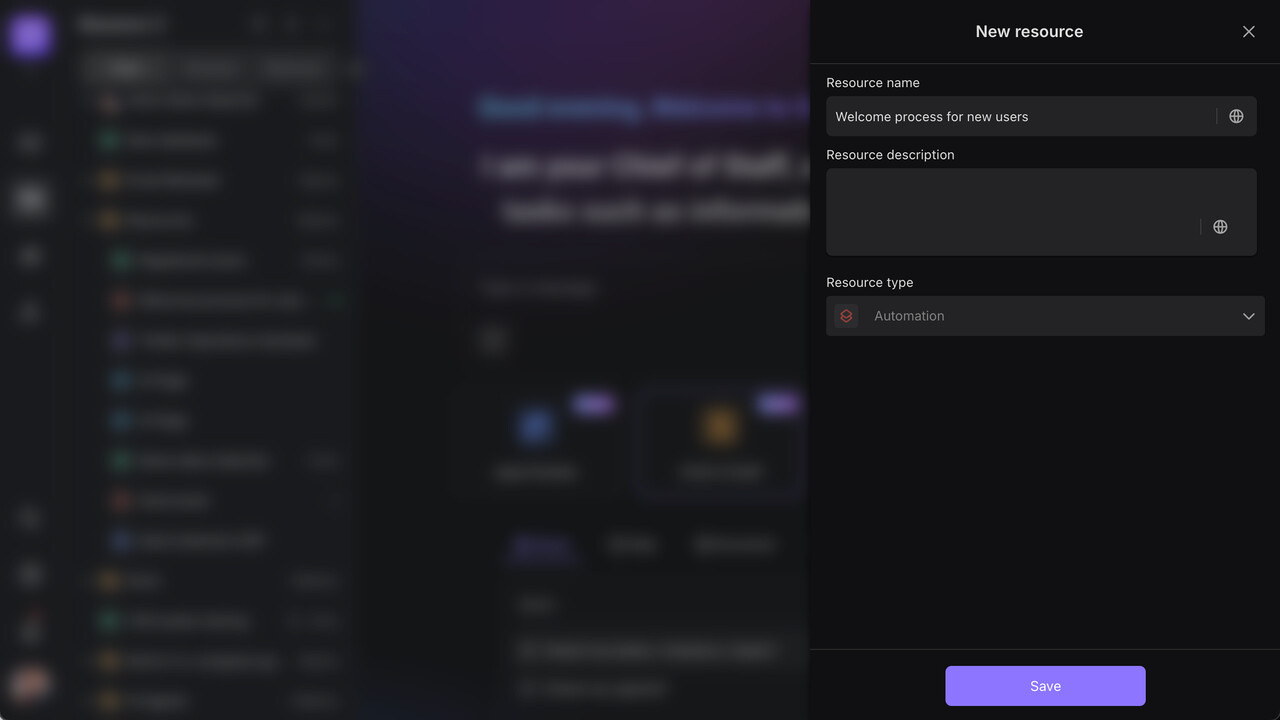
First, create a blank automation workflow and clarify its trigger condition (so the system knows when to start working):
-
Go to the Automation page, click “+ New Workflow”.
-
Name it “New User Welcome Workflow”.
-
Set the trigger: Select Record Created
-
Choose your registered user data table “Registered Users” (you can integrate it with your platform to automatically add new users to the list).


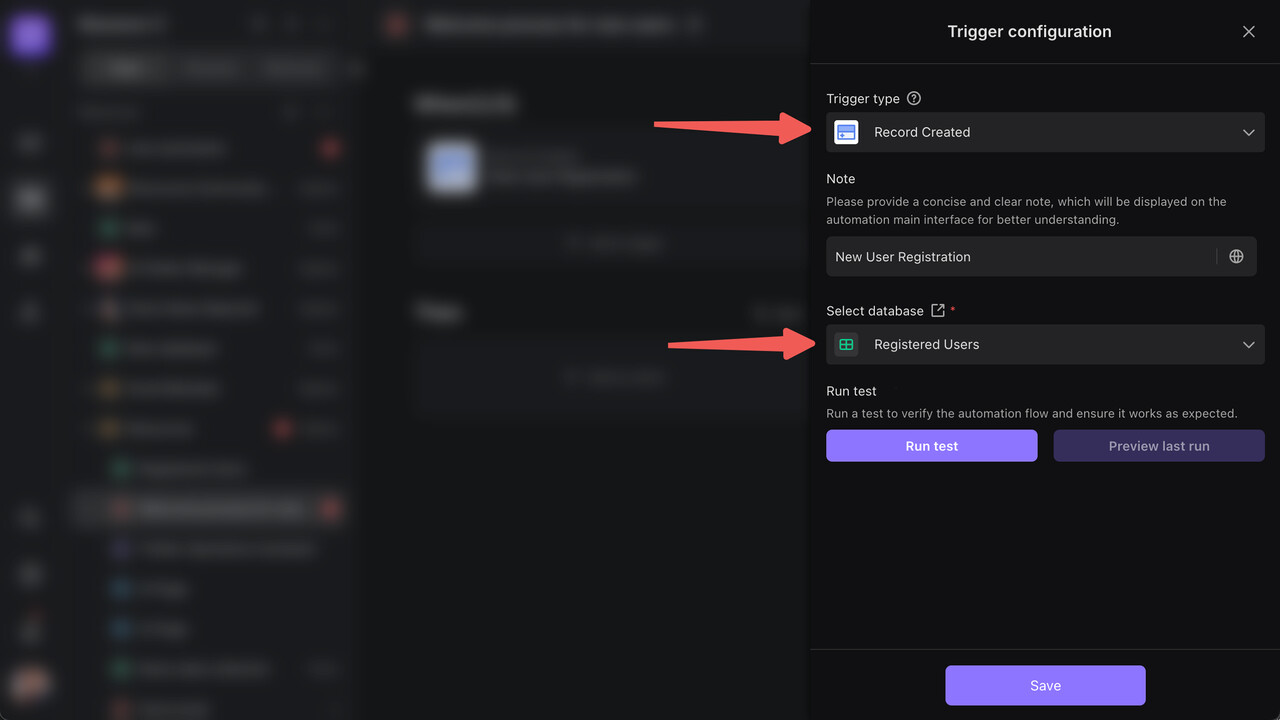

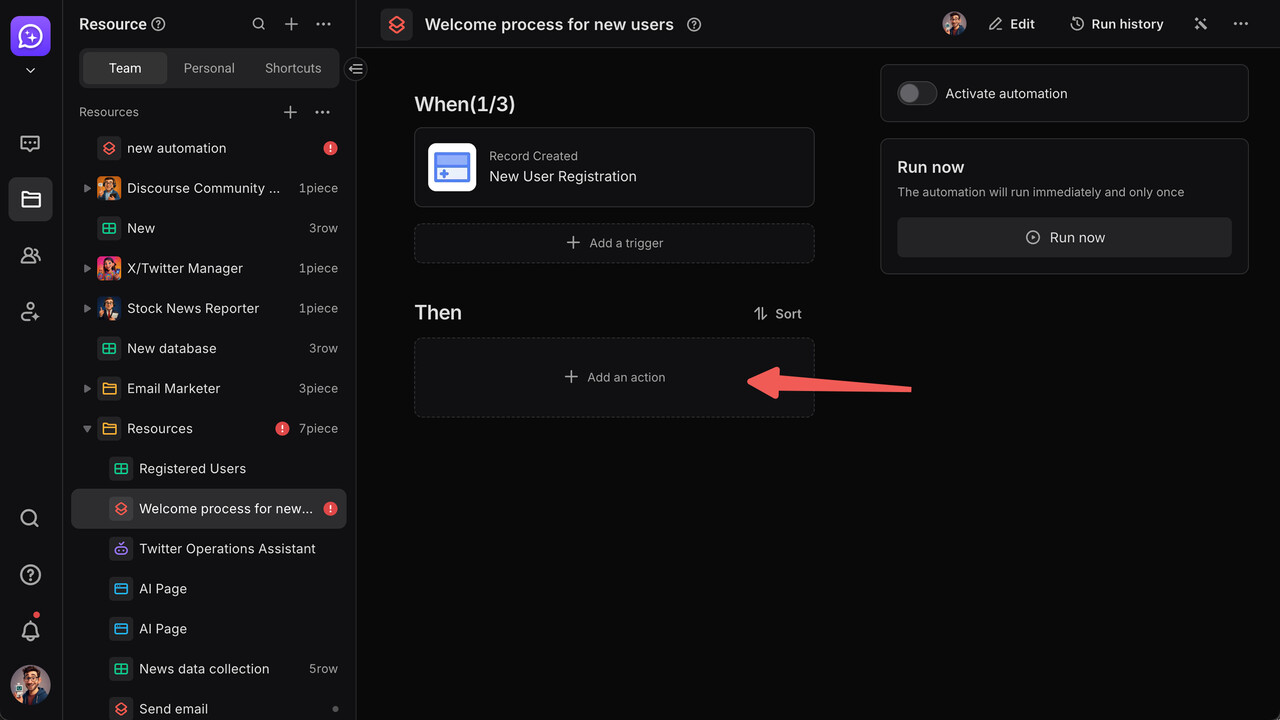
Now the system knows: “Start the workflow whenever this webhook is triggered.”
Step 2: Add an Email Action—Let the System “Greet” Users
-
Use the Send Email action to send a welcome email.
-
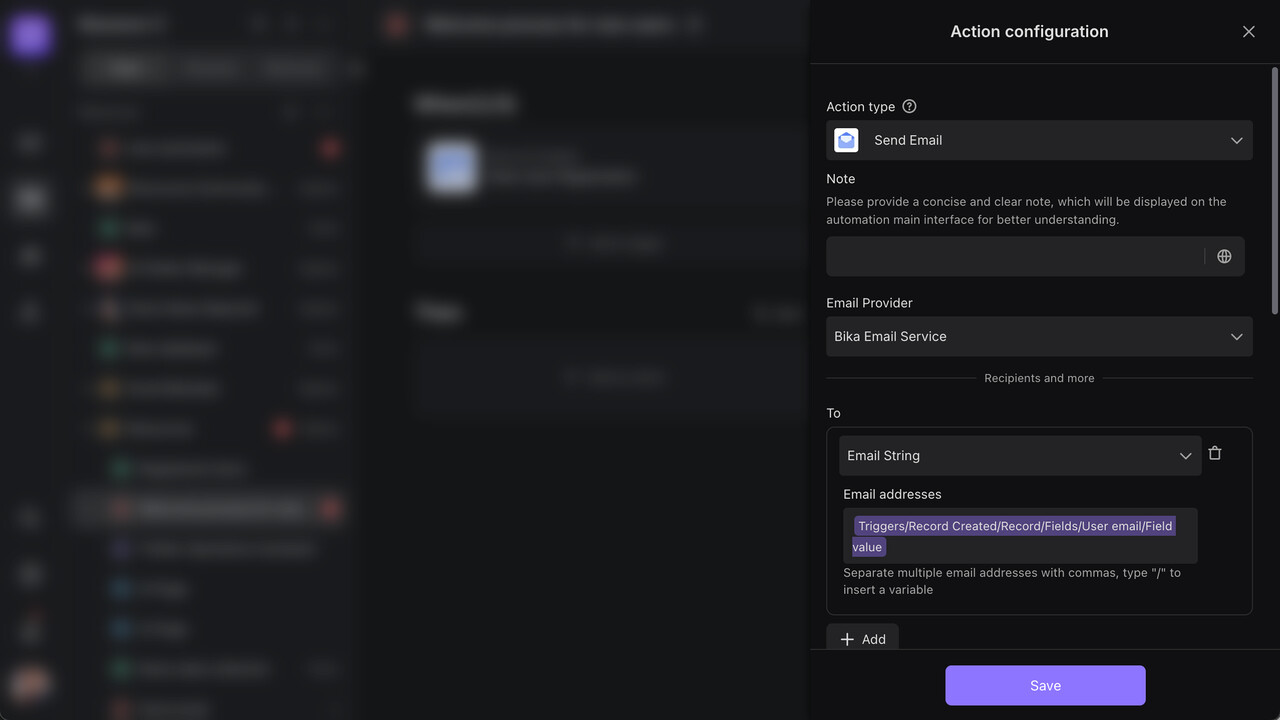
Add an executor, then search for “Send Email” in the type list.
-
Select the Bika Email Service skill for sending emails.
-
Configure the email:

-
Recipient: {{User Email}}
-
Subject: “Welcome to Bika!”
-
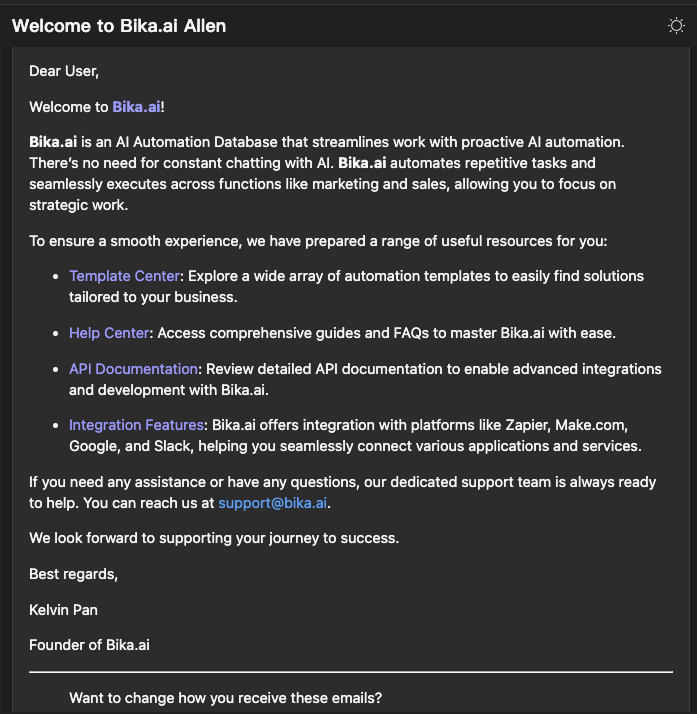
Content: Include a welcome message and product introduction.
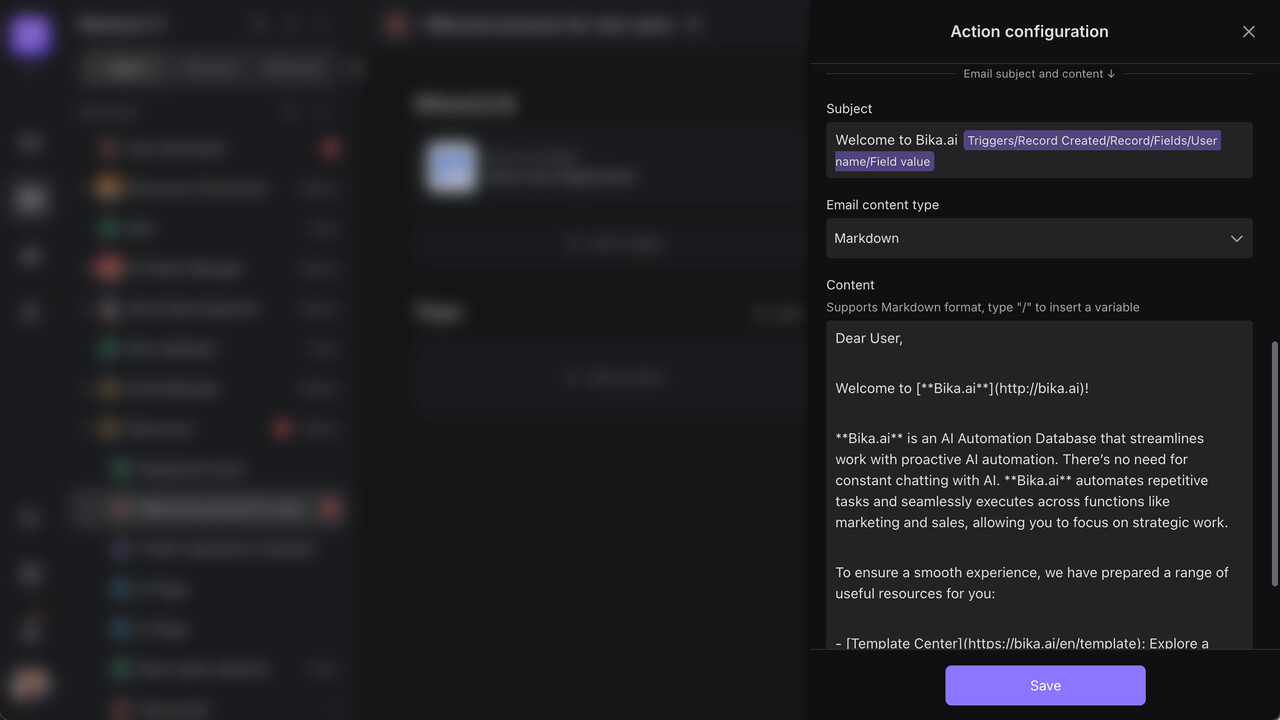
Now every new registered user will automatically receive a welcome email.
Step 3: Add a Team Notification Action—Let the Team “Know Immediately”
-
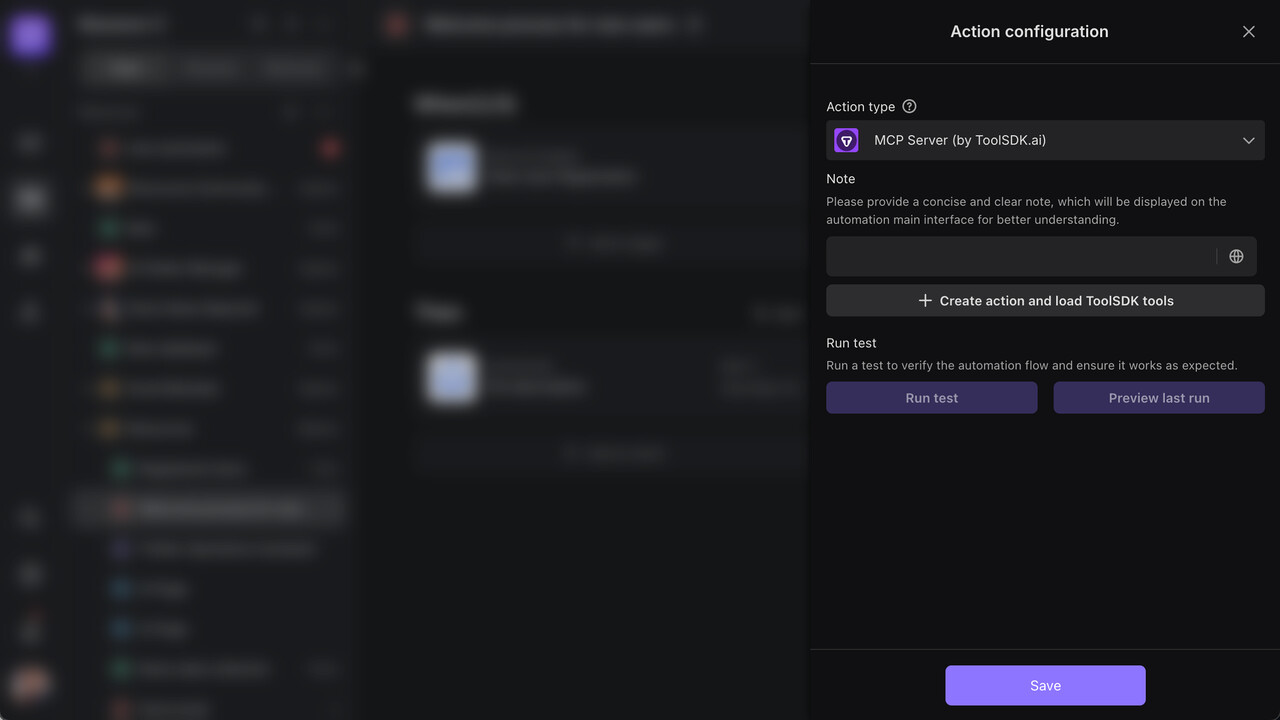
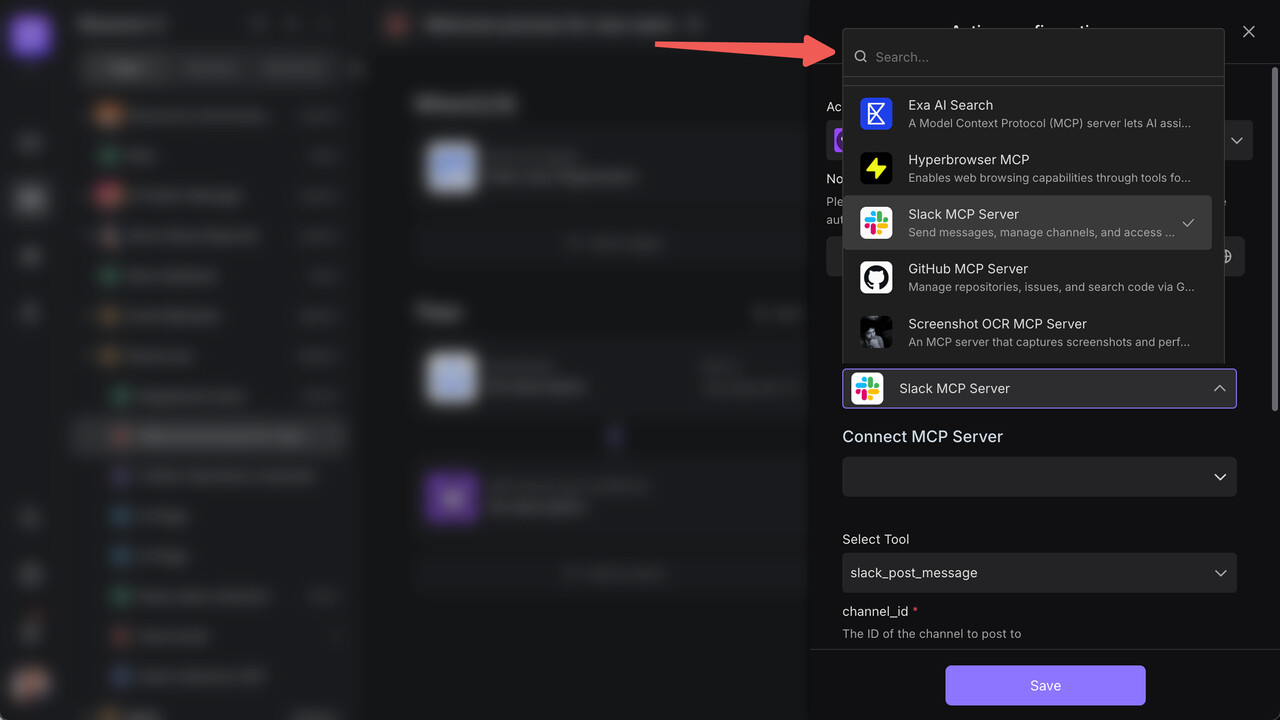
Add another Action → Select “MCP Server (by ToolSDK.ai)”.
-
Choose “Slack MCP Server”.
-
Connect the MCP Server (see “How to Obtain a Slack Token” for guidance).
-
Configure the notification:

-
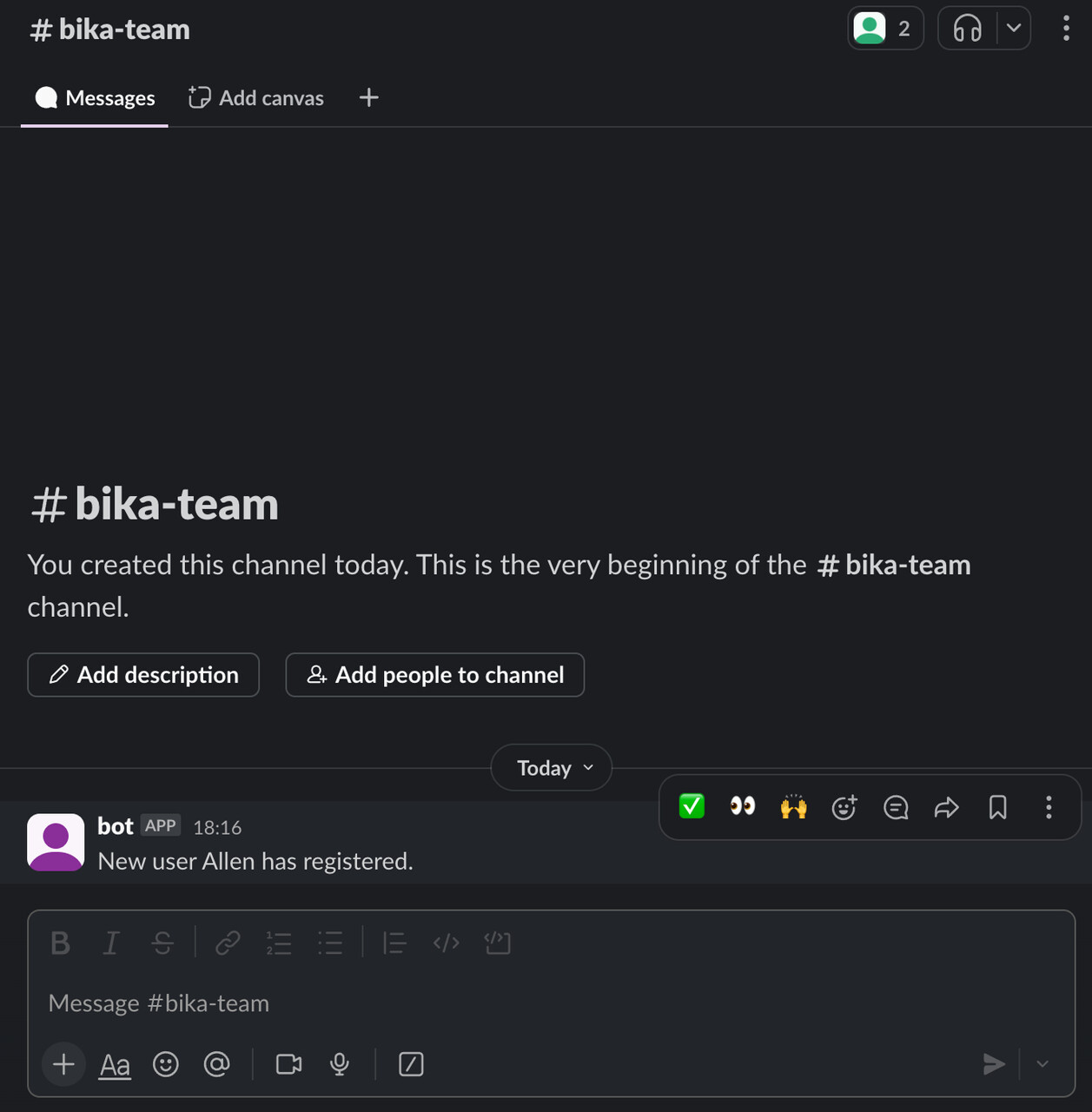
Channel: Bika-team
-
Message: “New user {{User Name}} has registered.”
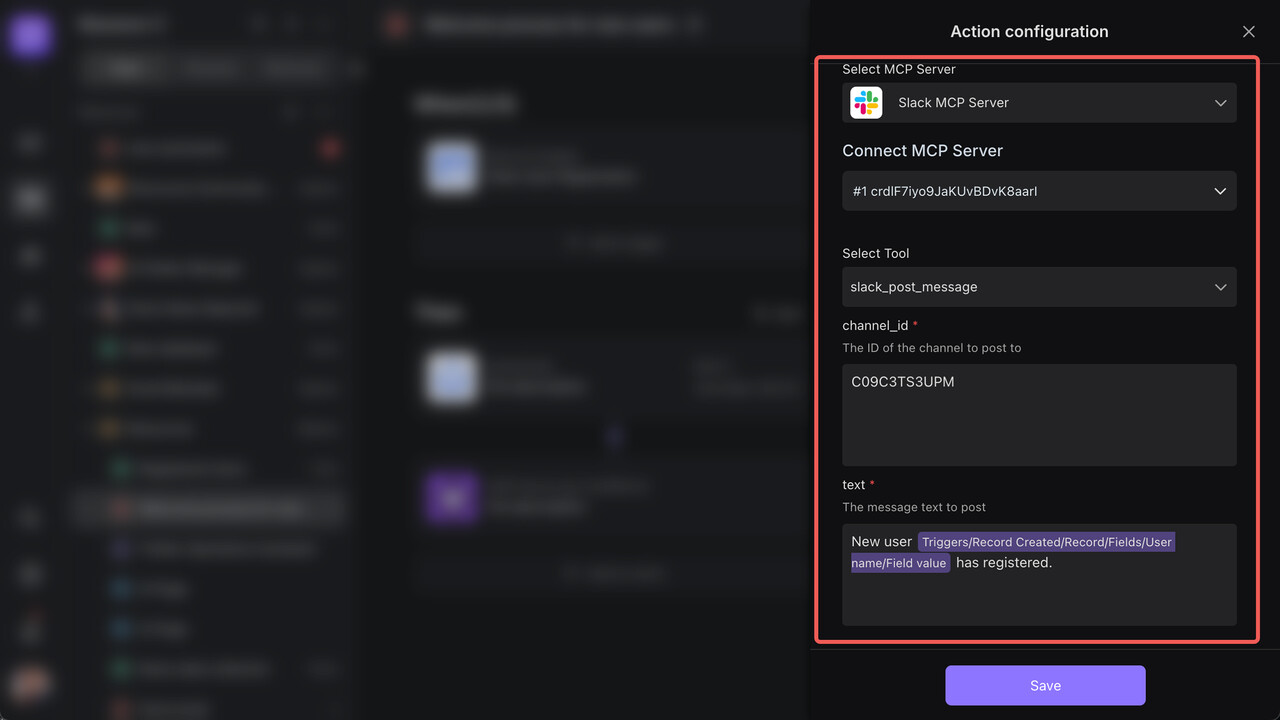
Now team members in the Slack channel will receive real-time alerts about new users.
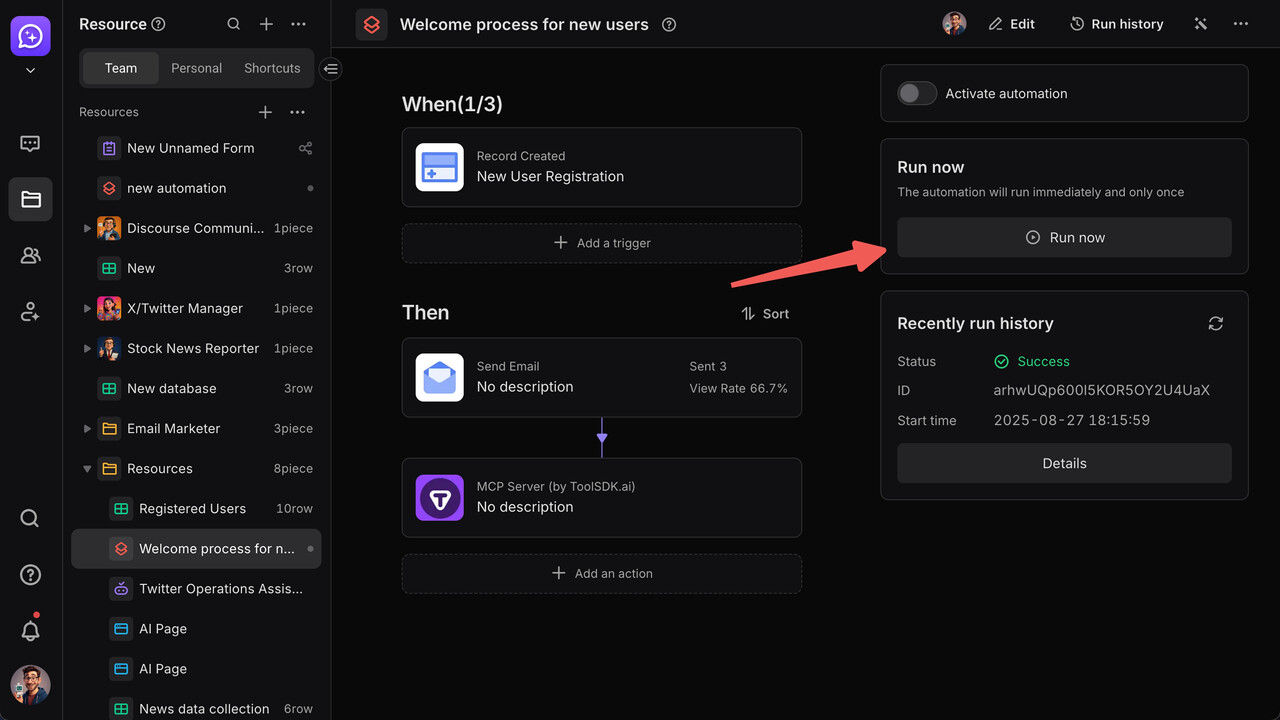
Step 4: Test and Launch—“Rehearse + Go Live”
-
Click RUN now to verify that the email and Slack notification work correctly.
-
Once confirmed, click Activate automation to activate the workflow.

Results
Now, whenever a new user registers, the system automatically:
 Triggers instantly: Starts immediately after detecting a new user registration.
- Sends personalized emails: Sends a welcome email with the user’s name.
- Notifies the team: Pushes new user info to the Slack channel.
- Logs activity: Keeps a complete record of execution logs and results.
Efficiency Boost: Team response time reduced from hours to minutes!
FAQ
Q: How do I find the Tool SDK I need?
A: Visit ToolSDK.ai to view the full list of Tool SDK apps, or search for the app name (e.g., “X (Twitter)”, “Slack”) in the MCP Server (by ToolSDK.ai) executor during automation setup.
Q: Does using “Tool SDK Actions” consume Credits?
A: Yes. The consumption amount depends on “model multiplier × number of words generated” (e.g., using GPT-4 to write a 500-word copy consumes “2x Credits × the amount for 500 words”).
Q: How do Credit consumption rates differ between models?
A: Basic models (e.g., GPT-3.5) use “1x X” (standard consumption), while advanced models (e.g., GPT-4, GPT-4.1) use “2x X” (double consumption).
Q: Is Tool SDK authorization secure?
A: The platform supports two standard authorization protocols: OAuth 1.0a and OAuth 2.0. It does not store your third-party app password. OAuth 1.0a uses digital signatures to verify each request, and OAuth 2.0 relies on HTTPS encryption and access tokens. Both ensure security, and you can revoke authorization in the app’s settings at any time.
Q: Can I use multiple Tool SDKs at once?
A: Yes. You can add multiple different Tool SDK Actions to one automation workflow, and they will run in the set order.
Q: Are there call limits for Tool SDK?
A: Yes—limits are set by the third-party app’s API. For example: Slack allows a maximum of 1 message per minute to the same channel. The platform automatically handles these limits and sends notifications when they are hit.
5. Other Ways to Extend MCP Servers
Besides using ToolSDK prebuilt MCP Servers, you can extend integration capabilities in the following ways to meet custom needs.
Custom MCP Server
For development guides, integration steps, and protocol specifications for Custom MCP Servers, refer to the community documentation:
GitHub Community Contributions
You can submit your self-developed MCP Server to the ToolSDK community for all Bika.ai users to use.
Why Contribute via GitHub?
Submitting your MCP Server through GitHub lets you:
- Benefit all Bika.ai users
- Receive official maintenance and support
- Improve the server’s stability and reliability
Contribution Process
- Fork: Visit the awesome-mcp-registry repository.
- Add Configuration: Add your JSON configuration file to the appropriate directory.
- Submit a PR: Create a Pull Request and fill in detailed descriptions.
- Wait for Review: Our team will review your submission.
- Go Live: Once approved, it will be automatically published to ToolSDK.ai.
 For detailed steps and configuration formats, refer to the full tutorial: How to Submit an MCP Server to ToolSDK.ai
FAQ
Q: How do I find the ToolSDK skill I need?
A: Visit the ToolSDK.ai official website for the full list of apps, or search for the app name (e.g., Slack, Email, Twitter) directly in Skillsetstings (for AI Agents) or Executor Selection (for Automation) in Bika.
Q: How do I submit an MCP Server to ToolSDK.ai?
A: Refer to the detailed guide: How to Submit a MCP Server to ToolSDK.ai | ToolSDK.ai: 5000+ MCP Servers & AI Tools, 1 Line of Code
Q: Why does Automation require extra steps?
A: To ensure the stability of automation workflows, we apply stricter screening to MCP Servers used in Automation.
Q: How long does it take for my submitted MCP Server to be available in Automation?
A: It typically takes 1–2 business days to be added after being published to ToolSDK.ai. Once added, it will appear in the Automation executor list.
Q: How do I check if my MCP Server is available in Automation?
A: Search for your MCP Server name when creating an automation workflow.
Tip: If you need to test an MCP Server quickly, we recommend verifying its functionality in an AI Agent using a Custom MCP Server first. Once confirmed, submit it to the GitHub community.
6. Core Advantages of Unlimited Integration
From the above introduction, you can see Bika.ai key differences from other integration platforms:
Truly Unlimited Scalability
- Not limited to prebuilt integrations
- Supports user-defined extensions and customization
- Compatible with all MCP Servers on the market
Developer-Friendly
- No need to build integrations from scratch
- Customization based on existing MCP Servers
- Adaptations for specific business needs
Unified Architecture
- Automation and AI Agent share integration capabilities
- Configure once, use anywhere
- Lower learning and maintenance costs
Unlimited Business Scenarios
- Combine different Tool SDK skills
- Build complex automated business workflows
- Support all scenarios from simple tasks to enterprise-level solutions
Conclusion
With Tool SDK, Bika.ai achieves truly unlimited third-party integration capabilities. Unlike traditional platforms with limited integrations, users can:
 Extend Independently: Add any MCP Server based on business needs.
 Customize Precisely: Modify existing integrations for personalization.
- Deploy Quickly: Apply configured Tool SDK skills to multiple business scenarios.
This architecture not only solves R&D cost issues but also unlocks endless innovation possibilities for users. Whether for simple task automation or complex enterprise solutions, Bika.ai provides powerful integration support through Tool SDK.